Tag Archives: PPA

Lubuntu Blog: Skippy-XD PPA

We have found a new PPA for our beloved Skippy-XD tool. If you don’t remember what it is, just have a look at the article (now updated) on this blog. If you want to install this compilation from GIT (another “latest” apps repository) you can do it the easy way, having no more depending on DEB downloads and ensure updates. Just open LXTerminal and execute these two command lines:

sudo …read more

Source: FULL ARTICLE at Planet Ubuntu

Stephen Michael Kellat: Late July Notes From Ohio Leader

Ubuntu Ohio held an IRC meeting on Thursday. Leveraging the capabilities of the LoCo Portal allows for rough minutes to be maintained there. A few matters arose:

  • Jon Buckley and Scott Randby gave tentative expressions of interest in speaking at UbuCon during Ohio Linux Fest 2013. Proposals from members of Ubuntu Ohio and those outside the team are due to the Point of Contact & Leader by July 31st. First priority will be given to scheduling presentations by members of Ubuntu Ohio however this does not limit those from outside Ubuntu Ohio from being possibly scheduled to speak. Topics of interest include but are not limited to: Gaming, Server usage, Flavor Highlights, Highlights about finishing up Saucy Salamander for release, Thoughts looking forward to the next Long Term Support release, Reflections on the changes wrought by the virtual Ubuntu Developer Summit paradigm, Ways we need to work within the cultures found in Ohio to expand Ubuntu deployment.

  • Two issues were carried over to the mailing list for further discussion due to a lack of attendance. The summation was prepared by Scott Randby and can be read in the archive here where issues concerning scheduling a keysigning and what, if any, materials should be distributed were raised. Discussions on the team mailing list are encouraged.


In light of the hostile actions taken against the Ubuntu Forums which have sparked recovery processes, members of Ubuntu Ohio are asked at this time to stick to the mailing list and the IRC channel for discussions.


The package monkeysign is being investigated for use with the proposed possible keysigning at Ohio Linux Fest. Currently the package has been copied from Debian Unstable to the Saucy Salamander package archive and test backports have been made by the leader in his personal PPA. If it does not break their may be an Ubuntu Ohio PPA opened with backports for 12.04, 12.10, and 13.04. Other tools to ease the process for the proposed session are also being investigated. The Leader has committed to send out sets of instructions to the team for at least two weeks prior to Ohio Linux Fest if the keysigning session is to happen.

…read more

Source: FULL ARTICLE at Planet Ubuntu

Enphase Energy and Vivint Solar Renew Inverter Solution Agreement

By Business Wirevia The Motley Fool

Filed under:

Enphase Energy and Vivint Solar Renew Inverter Solution Agreement

Vivint Solar chooses Enphase as 2013 inverter supplier

PETALUMA, Calif.–(BUSINESS WIRE)– Enphase Energy (NAS: ENPH) today announced the renewal of its relationship with Vivint Solar, Inc. to be their inverter solution for 2013. Vivint Solar is an affiliate of Vivint Inc., a leading provider of home technology services in North America.

“We are delighted to continue building off our powerful strategic relationship with Vivint Solar. For over a year-and-a-half, our advanced inverter technology, coupled with Vivint Solar‘s unique go-to-market, has helped accelerate them toward their goal of becoming the top U.S. installer of residential rooftop solar systems,” said Jeff Loebbaka, senior vice president of worldwide sales and field operations of Enphase Energy.

Vivint Solar customers save money on energy through a power purchase agreement (PPA) in which customers agree to buy the power generated by a solar photovoltaic system installed on their home, at rates that are generally lower than their local utility. In exchange, Vivint Solar designs, installs, operates and maintains the system with no additional out-of-pocket costs for the customers. This business model provides homeowners the benefits of renewable solar energy without a large, upfront investment.

“We are focused on nationwide expansion of our affordable solar offering, and we adopted Enphase early on because of the value their inverter solution delivers,” said Dan Rock, vice president of installs of Vivint Solar. “Enphase inverters provide flexibility to Vivint Solar‘s installation crews and provide Vivint Solar‘s customers with more efficient solar energy systems, resulting in enhanced savings to our customers.”

Vivint Solar currently operates in California, Hawaii, Maryland, Massachusetts, New Jersey, New York, and Washington D.C. For more information on Vivint Solar‘s products and services, visit www.vivintsolar.com.

The Enphase Microinverter System offers a revolutionary new approach to the installation, operation and maintenance of solar energy systems. Enphase Microinverters, the Envoy Communications Gateway and Enlighten web-based monitoring and analysis software work together to deliver increased energy harvest and unparalleled solar system intelligence. To date, Enphase has shipped over 3 million microinverters and is selling into ten countries across Europe, North America and Asia Pacific.

About Vivint

Vivint is a leading provider of home technology services in North America. …read more
Source: FULL ARTICLE at DailyFinance

Testing, another way to help your favorite FOSS project

I’ve done some testing before, but this time I want to document it here, so I can come back later and remind myself of some of the critical steps, and so others new to testing can get the confidence to start contributing in this way as well.

I’m lucky in that I have some extra computers I can use as testing machines. But when I didn’t, I used virtual machines, and those aren’t too difficult to set up. However, I’ll discuss that another time.

In general, please read the /topic in your development IRC channel, then ask about testing, or join the testing channel if there is one. Often you’ll be given bug numbers to test for a specific package — please be sure to comment completely in the actual bug report, not just give feedback in the channel. Be sure to ask what information is necessary. ISO testing is another place where folks are needed; again, your devel channel /topic should give you some good information. And don’t forget to join and read the relevant lists as well; no one can be in IRC all the time.

Right now, some packages need testing in the next distribution release. I prefer using the command line for things like this, because 1. in the console, upgrades happen “under” the desktop, so config files are updated cleanly, and 2. it is much faster. So first, the upgrade.

If your computer is already on, log out of your session. At the login screen, rather than typing in your password, hit Control + Alt + F2. Then log into first your computer with your username and password, then

sudo update-manager -d

This updates all your repositories to the development release. Next, the start the actual upgrade:

sudo do-release-upgrade -d

You’ll have to OK a few things, so it’s not entirely unattended. After the packages are all downloaded, the upgrade still takes quite awhile. Sometimes I start this at night, and just check on things in the morning.

Next, you’ll need to install the package, or build the application from a tarball, or source. Depending on your distro tools, this might vary a bit.

Building from source

For Amarok, Myriam has a great blog post about how to build from git: http://blogs.fsfe.org/myriam/2009/09/26/compiling-amarok-from-git-locally-full-summary/, so I won’t cover that. If you doing a local build of a different package, the steps will be similar. Consult the documentation for details.

Install from a PPA

To install a package from a PPA, in Debian-based distros, there is an easy way to add it (addrepo in Debian):

sudo add-apt-repository ppa:

This will download and register the public key, as well as adding the repository. Then you can simply install the package via the command line or using the GUI tools you prefer.

Build from a tarball

To get the tarball, cd to the directory …read more
Source: FULL ARTICLE at Planet KDE

Michael Hall: Coming Soon: Unity 7

I’m happy to announce that today I filed for a Feature Freeze Exception to get the latest Unity stack into Ubuntu Raring.  It’s a lot of new code, but it should all be available in a PPA in the next day or so, and it’ll be available there for about two weeks for people to test and provide feedback before it lands.  I won’t go into all of the fixes, performance work and other technical changes, but if you’re interested in what this means for you as a user, keep reading.

Smart Scopes

Discussed during a UDS-style Ubuntu On-Air hangout back in January, Smart Scopes use an intelligent server-side service to decide when they should be used to search.  This allows a single process (the Dash Home) to run a query through only a sub-set of your installed scopes.  It also allows the scopes processes to be terminated when you close the dash, and only re-start those that are likely to produce a relevant result.  As defined by the spec, this service will learn as more people use it, providing more relevant results, so you don’t get unwanted Amazon product results when it should be obvious you’re looking for an application.  It also means fewer running processes on your local machine, and therefore less memory usage overall.

100 Scopes

While there won’t be quite 100 in this release, there will be more scopes installed on the client than in previous releases, and even more that we will be able to implement on the server-side.  Thanks to the Smart Scope Service, these additional local scopes won’t be using up a lot of your system resources, because they’ll only be run when needed, then immediately terminated.  You will be able to install 3rd party scopes, just as before, even ones that the Smart Scope Service doesn’t know about yet.  Plus we will be able to add more server-side scopes during the lifetime of a stable release.  So while we’re not at 100 yet, there is still a large and growing number of scopes available.

Privacy

Now I know I couldn’t get away with talking about changes to the Dash, especially ones that put more of it’s functionality online, without talking about privacy concerns.  With these changes we’ve tried to strike a balance between control and convenience, privacy and productivity.  So while we’re providing more fine-grained controls over what scopes to enable, and whether or not to use the Smart Scope service, the default will still be to enable the services that we believe provides the best user experience on Ubuntu.  In addition, 13.04 has already added more notice to users that their the Dash will search online sources as well as local.

…read more
Source: FULL ARTICLE at Planet Ubuntu

Cordis Acquires Flexible Stenting Solutions, Inc.

By Business Wirevia The Motley Fool

Filed under:

Cordis Acquires Flexible Stenting Solutions, Inc.

Agreement Expands Treatment Options for Advanced Peripheral Artery Disease

BRIDGEWATER, N.J.–(BUSINESS WIRE)– Cordis Corporation, a worldwide leader in the development of interventional vascular technology, today announced it has completed the acquisition of Flexible Stenting Solutions, Inc., a leading developer of innovative flexible peripheral arterial, venous and biliary stents.

Currently, Cordis markets the S.M.A.R.T.® Vascular Stent worldwide. The addition of Flexible Stenting Solutions’ FlexStent® Self Expanding Stent System provides Cordis with the opportunity to evolve the S.M.A.R.T.® Stent platform to address unmet needs in the treatment of peripheral artery disease (PAD). It also extends the company’s potential to expand therapeutic applications into below-the-knee and venous interventions. An estimated 27 million people in Europe and North America alone suffer from PAD.

“Cordis continues to identify opportunities to enhance its expanding portfolio of less invasive treatment options to address the needs of patients suffering from vascular disease worldwide,” said Shlomi Nachman, Company Group Chairman, Cordis Corporation. “This acquisition will enable Cordis to provide clinicians more options to meet their evolving therapeutic needs and to strengthen our leadership position in the treatment of vascular disease.”

This acquisition marks another milestone in the company’s strategy to strengthen its position in the endovascular market. Recently Cordis received superficial femoral artery (SFA) and proximal popliteal artery (PPA) indications for the S.M.A.R.T.® Stent, the only stent approved in the U.S. for iliac, SFA and PPA vascular indications. In addition, Cordis offers market-leading endovascular technology platforms including percutaneous transluminal angioplasty balloons and chronic total occlusion crossing devices.

“The FlexStent® System is a promising platform designed to optimize flexibility, fracture resistance and radial strength with predictable placement. We look forward to expanding our experience with this new technology platform,” said Prof. Dr. Thomas Zeller, Director Department Angiology at Universitaets-Herzzentrum, Freiburg – Bad Krozingen, Bad Krozingen, Germany.

The FlexStent® System received European CE Mark approval for the treatment of vascular disease (iliac, SFA and popliteal) in January 2009. In the U.S., the device received 510(k) clearance by the Food and Drug Administration (FDA) for the palliative treatment of biliary strictures associated with malignant tumors in September 2009. The FlexStent® System is also being evaluated in an Investigational Device Exemption (IDE) study to evaluate its safety and efficacy in the treatment of patients with atherosclerosis in the SFA, or SFA disease. 1 Data from the OPEN Trial are expected to support a Premarket Approval (PMA) application requesting an …read more
Source: FULL ARTICLE at DailyFinance

Eric Hammond: Installing AWS Command Line Tools Using Ubuntu Packages

Here are the steps for installing the AWS command line tools that are
currently available as Ubuntu packages. These include:

  • EC2 API tools
  • EC2 AMI tools
  • IAM – Identity and Access Management
  • RDS – Relational Database Service
  • CloudWatch
  • Auto Scaling
  • ElastiCache

Starting with Ubuntu 12.04 LTS Precise, these are also available:

  • CloudFormation
  • ELB – Elastic Load Balancer

Install Packages

Enable the multiverse repository. This can be done through the Ubuntu
Update Manager
or by editing /etc/apt/sources.list Here are some
commands that will enable multiverse on a new installation:

# 12.04 LTS Precise, 11.10 Oneiric
sudo perl -pi.orig -e 
  'next if /-backports/; s/^# (deb .* multiverse)$/$1/' 
  /etc/apt/sources.list

# 10.04 LTS Lucid
sudo perl -pi.orig -e 
  's/^(deb .* universe)$/$1 multiverse/' 
  /etc/apt/sources.list

Enable the awstools PPA and update the apt package index:

sudo apt-add-repository ppa:awstools-dev/awstools
sudo apt-get update

Install available AWS command line tool packages:

sudo apt-get install ec2-api-tools ec2-ami-tools iamcli rdscli moncli ascli elasticache

# Also available on Ubuntu 12.04 LTS Precise
sudo apt-get install aws-cloudformation-cli elbcli

Some of these tools support passing in credentials on the command
line, but for regular use, you will want to store the AWS credentials
in files.

Set up AWS Credentials

Create a place to store the AWS credentials:

mkdir -m 0700 $HOME/.aws/

Copy your AWS X.509 certificate and private key to
this subdirectory. These files will have names that look something
like this:

$HOME/.aws/cert-7KX4CVWWQ52YM2SUCIGGHTPDNDZQMVEF.pem
$HOME/.aws/pk-7KX4CVWWQ52YM2SUCIGGHTPDNDZQMVEF.pem

Create the file $HOME/.aws/aws-credential-file.txt with your AWS
access key id and secret access key
in the following
format:

AWSAccessKeyId=YOURACCESSKEYIDHERE
AWSSecretKey=YOURPRIVATEACCESSKEYHERE

Add the following lines to your $HOME/.bashrc file so that the AWS
command line tools know where to find the above files:

# AWS credentials
export EC2_PRIVATE_KEY=$(echo $HOME/.aws/pk-*.pem)
export EC2_CERT=$(echo $HOME/.aws/cert-*.pem)
export AWS_CREDENTIAL_FILE=$HOME/.aws/aws-credential-file.txt

Make sure these are set in your current shell(s):

source $HOME/.bashrc

Test

Make sure that the command line tools are installed and have
credentials set up correctly. These commands should not return
errors:

ec2-describe-regions 
ec2-ami-tools-version
iam-accountgetsummary
rds-describe-db-engine-versions
mon-version
as-version

# Ubuntu 12.04 LTS Precise and higher
cfn-list-stacks
elb-describe-lb-policies

AWS Command Line Tools

The table below shows some of the various AWS products, whether Amazon
publishes command line tools, and whether these are available in key
Ubuntu releases. Some of the packages are available in the standard
apt repositories, some require adding multiverse, and
some are published in the awstools PPA. The awstools PPA also
has newer versions of some of the packages released by Amazon after
the official Ubuntu release.

…read more
Source: FULL ARTICLE at Planet Ubuntu
AWS Service Amazon Command Line Tools Ubuntu 12.04 LTS Precise Ubuntu 11.10 Oneiric Ubuntu 10.04 LTS Lucid
EC2 API Tools AWS CLI multiverse multiverse
PPA updates
multiverse
PPA updates
EC2 AMI Tools AWS CLI multiverse multiverse
PPA updates
multiverse
PPA updates

Thoughts and worries about the proposed new Ubuntu processes

Today began in a virtual UDS session (Google Hangout) with the Xubuntu team. The video can be seen here: http://summit.ubuntu.com/uds-1303/meeting/21666/community-xubuntu-contingencies/ . Xubuntu devels stopped by #kubuntu-devel and asked us to bring our list of concerns to share. The list we developed:

  • The new system will do away with releases for each upstream KDE release, which is a prominent feature of Kubuntu. One idea is to do releases of LTS+PPA with latest KDE but that’s against policy and needs technical changes to make happen. Or will there be a way to create ISOs from PPAs?

  • Mir is a worry since KWin will clash with it (a compositing manager inside a compositing manager). How good will continued Wayland and X support be?

  • Where to put Beta releases of software? Testing is a huge part of quality. So while a PPA seems the obvious suggestion, but they’ll get less testing there. Now we use a beta ppa only for backports. Consistent quality would require staging major changes somewhere else.

  • How will library transitions be handled outside of cadence?

  • Launchpad breakdowns. We are trying to automate more of our building tasks, but often the scripts must be run repeatedly because of Launchpad timeouts.

  • Weakness of unit & hardware testing. This is crucial for a successful rolling release.

  • Security updates – who gets them? When, and how often? (LTS will get them as usual, but for rolling it seems the monthly snapshots don’t get any? you need to use rolling)

<span style="background-color: transparent;color: black;font-family: Arial;font-size: 15px;font-style: normal;font-variant: normal;font-weight: normal;text-decoration: none;vertical-align: …read more
Source: FULL ARTICLE at Planet KDE

KDE Telepathy Enters Hard Feature Freeze

With KDE Telepathy 0.5.3 out the door out our entire focus is on 0.6.0 our next major release. We have just entered a hard feature freeze to allow for a solid month of bugfixing.

Important Dates

Hard Feature Freeze – 3rd March

A hard feature freeze is when no new features can be added to the code. All work has to be on fixing bugs and polishing.

Beta Release – 6th March

We will make a public beta release so you can see all the new features and provide useful feedback before the full release.

String freeze – 16th March
After this date we are not able to change any of the text used by our applications, It gives our translator team a stable set of text (strings) to work with without us changing them the whole time.

The release – 30th March
Hopefully self-explanatory 🙂

What’s going to be new in 0.6?

Find out yourselves by running the latest code 🙂
A real announcement will come with the official beta release.

How do I run the latest code?

KTp is generally really stable as all the developers use IM on a daily basis always running the latest code. It helps us to have lots of people running the latest code before we release a piece of software so we know about, and can fix, issues from a wide variety of set ups as we introduce new code, before it hits the general masses.

It helps us, and you get to be on the “bleeding edge”. Please report all bugs as they come in.

From Source

We have instructions in our wiki at http://community.kde.org/KTp/Getting_Set_Up

(K)Ubuntu Packages

If you use Kubuntu we have a PPA of our latest code.
Install instructions are:

sudo apt-add-repository ppa:telepathy-kde/daily-builds
sudo apt-get remove kde-telepathy-minimal plasma-widget-telepathy-presence
sudo apt-get install ktp-desktop-applets

OpenSuse packages

zypper ar -f http://download.opensuse.org/repositories/KDE:/Unstable:/Playground:/Tel…
zypper in telepathy-kde

How can I get involved?

Join our mailing lists and IRC channels and get hacking on any outstanding bugs. Note that we are in a feature freeze, but any bugfixing/polishing is always a really good way to get involved in a project.

For contact information see our wiki page http://community.kde.org/KTp/Getting_Involved

…read more
Source: FULL ARTICLE at Planet KDE

Duane Hinnen: Add and Remove PPAs Using Terminal or Y PPA Manager

screenshot

One thing I love about Linux is the ability to try new applications. After all the open source community is very active and new applications are being created all the time. The command-line makes it easy to add and remove Personal Package Archives. However their is a tool which will let you add, remove, search, manage Personal Package Archives(PPA) and more from a GUI. I will talk about it below.
First the basics. You can easily add a PPA from the command-line with the following commands.

add-apt-repository ppa:

For exaple in three easy commands I can install the application CLI Companion:

sudo add-apt-repository ppa:byobu/ppa

sudo apt-get update

sudo apt-get install byobu

Because of my endless tinkering and checking out the latest software our FOSS developers have created I ended up with quite a large collection of Personal Package Archives(PPA). Some of which I no longer used.

At first I was unsure how to get rid of these. Today I did a little research and wanted to share with you what I found. This includes a cool new application called Y PPA Manager. Whether it is the command-line or a fancy GUI app we will have you cleaning up your collection of Personal Package Archives in no time.

From the terminal you can use a very similar command that you used to add the PPA.

sudo apt-add-repository –remove ppa:

Then run the following to download the package lists from the repositories and “update” them to get information on the newest versions of packages and their dependencies. It will do this for all repositories and PPAs

sudo apt-get update

Saved The Best For Last

I came across a project which had a lot of positive reviews and made many top 10 application lists. The features definetly peeked my interest. The application is Y PPA Manager. Y PPA Manager is a tool which simplifies this process of managing Personal Package Archives (PPA). It allows adding, deleting and purging PPAs easily. You can also search and install PPAs from Launchpad repositories by entering the name of an application. I gave it a spin today and I have to say so far I like it. You can install Y PPA Manager with the following commands,

sudo add-apt-repository ppa:webupd8team/y-ppa-manager

sudo apt-get update

sudo apt-get install y-ppa-manager

The main interface is quite self explanatory. You can Add a new PPA from the Add button and delete added sources from the Remove button. To get a list of your packages, use the “List Packages”. The Advanced options allows backing up, restoring and purging PPAs.

What makes this application really useful is its PPA search ability. This allows you to easily find a Launchpad PPA, click on Search all Launchpad PPAs and enter an application name. You can also enable the Deep Search option for a more advanced search.

Whichever option you choose your PPPA list will now be much more …read more
Source: FULL ARTICLE at Planet Ubuntu

Martin Pitt: umockdev 0.2: record/replay input devices

I just released umockdev 0.2.

The big new feature of this release is support for evdev ioctls. I. e. you can now record what e. g. X.org is doing to touchpads, touch screens, etc.:

  $ umockdev-record /dev/input/event15 > /tmp/touchpad.umockdev
  # umockdev-record -i /tmp/touchpad.ioctl /dev/input/event15 -- Xorg -logfile /dev/null

and load that back into a testbed with X.org using the dummy driver:

  cat <<EOF > xorg-dummy.conf
  Section "Device"
        Identifier "test"
        Driver "dummy"
  EndSection
  EOF

  $ umockdev-run -l /tmp/touchpad.umockdev -i /dev/input/event15=/tmp/touchpad.ioctl -- Xorg -config xorg-dummy.conf -logfile /tmp/X.log :5

Then e. g. DISPLAY=:5 xinput will recognize the simulated device. Note that Xvfb won’t work as that does not use udev for device discovery, but only adds the XTest virtual devices and nothing else, so you need to use the real X.org with the dummy driver to run this as a normal user.

This enables easier debugging of new kinds of input devices, as well as writing tests for handling multiple touchscreens/monitors, integration tests of Wacom devices, and so on.

This release now also works with older automakes and Vala 0.16, so that you can use this from Ubuntu 12.04 LTS. The daily PPA now also has packages for that.

Attention: This version does not work any more with recorded ioctl files from version 0.1.

More detailled list of changes:

  • umockdev-run: Fix running of child program to keep stdin.
  • preload: Fix resolution of “/dev” and “/sys”
  • ioctl_tree: Fix endless loop when the first encountered ioctl was unknown
  • preload: Support opening a /dev node multiple times for ioctl emulation (issue #3)
  • Fix parallel build (issue #2)
  • Support xz compressed ioctl files in umockdev_testbed_load_ioctl().
  • Add example umockdev and ioctl files for a gphoto camera and an MTP capable mobile phone.
  • Fix building with automake 1.11.3 and Vala 0.16.
  • Generalize ioctl recording and emulation for ioctls with simple structs, i. e. no pointer fields. This makes it much easier to add more ioctls in the future.
  • Store return values of ioctls in records, as they are not always 0 (like EVIOCGBIT)
  • Add support for ioctl ranges (like EVIOCGABS) and ioctls with variable length (like EVIOCGBIT).
  • Add all reading evdev ioctls, for recording and mocking input devices like touch pads, touch screens, or keyboards. (issue #1)

…read more
Source: FULL ARTICLE at Planet Ubuntu

Julián Alarcón: Diodon, an Indicator Applet to manage the clipboard on Ubuntu

The clipboard management is something really important for me at the time of using an Operative System. Diodon is an excellent clipboard manager that is integrated with Ubuntu and its Unity interface. To install it we just need to use the PPA available from their Launchpad site (since the next … …read more
Source: FULL ARTICLE at Planet Ubuntu

Marcin Juszkiewicz: How to update Chrubuntu 12.04 to Ubuntu 13.04

There are many users of so-called Chrubuntu which have Ubuntu 12.04 running on their Samsung ARM Chromebooks. And I do not support them with any updates so they wonder how to upgrade to 13.04 release. So I decided to spend some time and help with it.

For this I installed Chrubuntu 12.04 on SD card (not on internal as I have own installation of Ubuntu there) and I will go though upgrade to 13.04 and document all steps here.

First thing: if your Chrubuntu installation fails on fetching 4.7MB of “ubuntu-1204-binak.bz2″ file then you probably started script with “sh” instead of “bash”. Abort process and run it with “bash” — it really needs it.

But ok, you got your Chromebook booted to Ubuntu desktop (running Unity 2D). Remember: your password is “user”. Open terminal (Ctrl+LAlt+t), get root and edit APT sources so they will point to “raring” instead of “precise”. Now refresh APT data and run distro upgrade (I used “apt-get dist-upgrade”).

There may be some issues during upgrade. I had to run “apt-get -f install” and it removed some packages including “unity” and “ubuntu-desktop”. To get them back I needed “apt-get install ubuntu-desktop gnome-control-center nautilus nautilus-share nautilus-sendto eog unity libgnome-desktop-3.4 gnome-settings-daemon” command.

Next step is adding ARM Chromebook hackers PPA: “sudo add-apt-repository ppa:chromebook-ppa” and again updating APT cache.

Now it is time to install Ubuntu kernel and tools: “apt-get install cgpt vboot-kernel-utils linux-image-chromebook”. During installation you will get “Warning: root device does not exist” message during creation of initrd image. Just ignore that and then remove “flash-kernel” package.

Time to sign kernel. Create file with kernel command line. I suggest “console=tty1 printk.time=1 quiet nosplash rootwait root=/dev/mmcblk1p7 rw rootfstype=ext4″ but you can adapt it as you want. Sign kernel: “vbutil_kernel –pack /tmp/kernel-to-boot-ubuntu –keyblock /usr/share/vboot/devkeys/kernel.keyblock –version 1 –signprivate /usr/share/vboot/devkeys/kernel_data_key.vbprivk –config CMDLINE_FILE –vmlinuz /boot/vmlinuz-3.4.0-5-chromebook –arch arm”. And do not forget to write it to SD: “dd if=/tmp/kernel-to-boot-ubuntu of=/dev/mmcblk1p1 bs=4M”.

Time to reboot to 13.04. Less kernel messages on console then before but blue screen instead of Unity desktop ;( Good that “Ctrl-LAlt-1″ switches us to text console.

Login as “user” (password is “user” as I mentioned earlier), gain root and install “chromium-mali-drivers” package. Now “restart lightdm” and check how X11 looks this time. Still blue? Switch back to text console then.

Now it is time to enable “universe” part of repository (I though that it is enabled by default). Edit “/etc/apt/sources.list” file and uncomment proper lines. Now we can install “armsoc” X11 display driver. Here you can curse at me — package in repository lacks Exynos5 part of xorg.conf ;(

But this does not change situation — still no Unity. At this moment I can recommend XFCE instead. Install “xubuntu-desktop” (181MB of disk space needed).

Ok, time to switch default session to Xubuntu one. Edit “/etc/lightdm/lightdm.conf” and set “user-session” to “xubuntu”. Save and “restart lightdm”. Now you should land in XFCE session.

Are icons broken? If yes then you probably need to complete distribution upgrade. I had 725 packages to process… Once it done — restart X11 session.

So …read more
Source: FULL ARTICLE at Planet Ubuntu

Dustin Kirkland: Introducing Hockeypuck — a new HKP server

[Prerequisite: You should first read Casey’s introduction to HKP and Hockeypuck on his blog here.]

Anyone who has ever used Ubuntu, Debian, Launchpad, or apt-get has implicitly trusted a sophisticated public key distribution protocol called “HKP” or, HTTP Keyserver Protocol.  Originally designed for encrypting and signing email, asymmetric key pairs are used to sign, encrypt, decrypt and check signatures of thousands of packages on almost any Linux system.

Many (most?) public key servers today, such as keyserver.ubuntu.com, use an open source package called SKS (synchronizing key server) to distribute public keys.

Within Gazzang‘s zTrustee product, we rely on HKP to exchange public keys between client’s and server.  In our first implementation, we simply used SKS as installed from the Ubuntu repositories.  SKS worked well in some environments, but it didn’t scale well to larger environments, where hundreds of thousands of clients running on cloud servers were exchanging public keys in an automated fashion.

Moreover, we envisioned a system where user and host public SSH keys and server public SSL certificates might be exchanged in the same fashion, using the same protocol.  We considered trying to extend SKS to improve the scalability and feature set.

In the end, we decided a new HKP implementation, leveraging a modern, high performance NoSQL key-value store — MongoDB — and written in modern language — The Go Programming Language — would enable us to build a more efficient, type-safe, memory-safe, concurrent, garbage-collected, fast implementation of HKP.  We could also extend the feature set with a nice user interface and natively support other public keys.

With the general ideas fleshed out, my esteemed colleague, Casey Marshall, got to work on Hockeypuck — his implementation of HKP in Golang and MongoDB — freely available under the AGPL.  All credit for the development of Hockeypuck up to this point goes entirely to Casey 🙂  That said, he’s really quite interested in outside contributions and help at this point, so if you’re proficient in Golang and looking to contribute to an awesome security project, here’s your bogey!

We at Gazzang are hosting a reference Hockeypuck server at:

But you don’t have to use our Hockeypuck server … we’re absolutely delighted that Hockeypuck has been accepted into Ubuntu’s 13.04 (raring) distribution in Universe.  It’s as easy as:

$ sudo apt-get install hockeypuck

in Ubuntu 13.04 to get your Hockeypuck server up and running.  For other Ubuntu releases, Casey is publishing backports to a stable and an unstable PPA.

This server has successfully imported the world’s current public key ring — that’s 4GB of OpenPGP public key information!  Casey’s still working on the synchronization, which is based on SKS’s “recon protocol”.  Again, if you’re into hard core polynomial math, can read and understand OCaml, and are interested in re-working that algorithm in Golang, get …read more
Source: FULL ARTICLE at Planet Ubuntu

Marc Deslauriers: My Mythbuntu setup

I watch a lot of TV. Although I would really like to get rid of my satellite provider and switch to streaming the shows I like off of the Internet, living in Canada means a lot of the streaming video services aren’t available, and even if they were, the bandwidth required to watch them would bust my download quota.

I’m also really picky about video compression, and some of the streaming services compress so much that watching their shows on the 55” TV I have in my living room is painful. Also, for some reason, half the shows and movies on Netflix have audio sync issues on my setup.

MythTV plays a large part in my household. All shows I watch are scheduled and recorded in HD off my satellite provider. While I wait for Ubuntu TV to take shape, I’ve recently upgraded my MythTV setup to Mythbuntu 12.04.

Backend

My MythTV backend is running on an HP Pavilion a4310f, with 4GB or ram, and a 1TB HDD. It’s hooked up to a Hauppauge HD-PVR which records the video stream coming from my satellite provider’s box. I have set the satellite provider’s box to output 720p, as that gives me reasonable file sizes with an acceptable picture quality. Video is recorded over component cables, and sound is recorded in 5.1 over a TOSLINK cable. I use the IR blaster included with the HD-PVR to switch stations on the satellite box.

Instructions for setting up the HD-PVR in MythTV can be found in the wiki. This pretty much works out of the box with Mythbuntu. Although I originally had stability problems with the HD-PVR where every couple of months it would switch to recording audio at 25fps resulting in audio drift, a firmware upgrade to version 1.6.29353 has made it rock solid. I haven’t risked upgrading to the most recent 1.7.x firmware as I don’t currently have any issues.

You can obtain the script I use to change channels, my lircd configuration files, and the rc.local file I use to set the audio input here.

To set the picture control values to reasonable settings, I change the defaults for all channels in the MythTV database by running the following SQL command:

update channel set contrast=16384,brightness=32768,colour=16384,hue=3840;

I schedule programs to record using the MythTV web interface, and recorded shows are streamed in HD over the built-in UPnP server to any one of the three Playstation 3s I have around the house which also serve as Blu-ray players. I also have a dedicated MythTV frontend in the living room, which allows me to view TV shows without commercial interruption, and to delete shows once they’ve been watched. These are all connected using the wired gigabit network I installed during house construction, preventing the problems associated with streaming HD video over a wireless network.

Frontend

In the living room, which is my main TV viewing area, a dedicated MythTV frontend is used. I am using a Jetway HBJC600C99-352W-BW mini computer. I chose that model because it came with a built-in remote control, which allows me to power it on and control it from my Sony RMVL610 universal learning remote. It also features Nvidia Ion2 graphics, which enables me to use VDPAU with MythTV in order get the performance necessary to decode HD video.

I added a 1GB SO-DIMM to it, along with a cheap 32GB KingSpec SSD. It is also running Mythbuntu 12.04, and is hooked up to the gigabit wired network.

Getting the remote to work was a bit of a challenge. The device has a bogus HID report descriptor, resulting in a compatibility issue with the kernel HID drivers. Before a kernel fix was available, I discovered an application called “hid-mapper”, which allows converting any HID event into a keypress event. This is what I use on my frontend. I have packaged hid-mapper, along with some fixes, and all of the configuration scripts necessary to get it working on my frontend in my PPA.

If you do use my configuration files, please be aware that since I use a universal remote, I opted to make use of all buttons on the original remote without any regard to their placement or function. If you intend on using the original remote, you may want to reconfigure the button mappings to your liking.
Source: FULL ARTICLE at Planet Ubuntu

KXStudio, a good audio distribution using KDE

Since a few months my main computer is running a special Ubuntu-based distribution called KXStudio.
It’s actually a set of PPAs on top of ubuntu repositories, meant to provide updated and additional audio-creation software. Also it’s using KDE Plasma as official desktop, with a very good default configuration and an up-to-date 4.9.5 version. So if you’re interested in a good audio distribution, a good KDE system or both, keep on reading…

As I said KXStudio is a set of PPA repositories, divided in categories, so when I first installed it I started from a fresh Xubuntu install, added the most important repositories on top of it (main, plugins, kernel and drivers, kxstudio, and latest) and installed “kxstudio-desktop-xfce” meta-package. I used an XFCE desktop first because I’ve always had better experience for “real-time” audio on this light desktop, but then when I saw that the officially supported desktop was KDE 4.9, I added the “KDE 4.9″ PPA and installed “kxstudio-desktop-kde”, and never had to return to XFCE since then ;)
Now since ~2 weeks there’s a new .iso image to test and install it directly, so you may try it instead for a simpler installation.

The most important difference with any regular distribution is that it’s using the JACK audio server for the system by default. For those who are new to audio software on Linux, JACK is the “realtime” audio server used to run audio software with very low latency and to connect their inputs and outputs to make them work together. So here we have jack launched directly with the desktop, with some bindings for applications using only ALSA or Pulseaudio to JACK. This works very well (and, on a side note, on the KDE desktop it somehow fix the weird issue I had with phonon popping a window now and then saying it can’t find a device..)

It includes new software to make it easy:
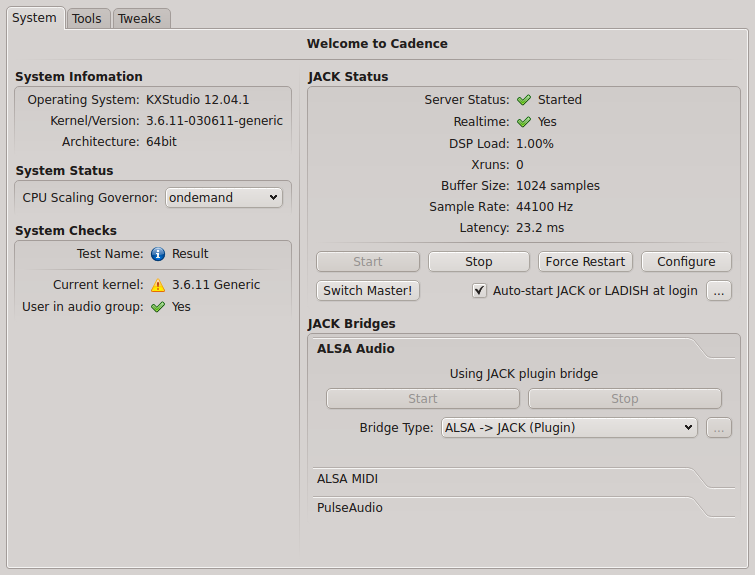
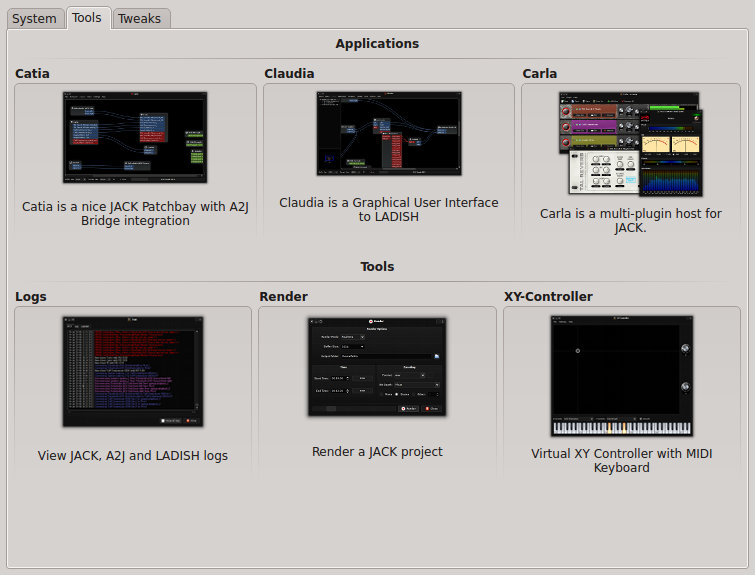
-Cadence, a cool GUI to configure JACK, check current system status, and launch the other JACK-tools.
-Catia, a simple patchbay to check and modify audio and midi connections.
-Claudia, same thing as Catia but using LADISH sessions to save and reload settings (for advanced use)
-Carla, a great multi-plugin host for JACK
-a classic log window for troubleshooting
-a render tool to record a JACK project
-a virtual XY-controller+midi keyboard to simulate the equivalent hardware.

Cadence

Cadence tools

For a better experience, I recommend to use JACK-native software as much as possible, use the alsa-jack bridge for everything else, and really just if none of these works for the software you want to use, install and launch the pulseaudio jack-bridge (but there really is not much pulseaudio-only apps, at least I don’t use any).

For audio player, Aqualung and Clementine have good JACK support.
For video, VLC and MPlayer are JACK compatible too.
Firefox/flash is using the alsa/jack bridge.

Just give it a try when you have a moment, you’ll see by yourself…

Many thanks to the little KXstudio team for all the work!

Technical note specific to intel GPU users:
I use a laptop with intel GPU (Ivy Bridge), which requires drivers much more recent than those shipped with Ubuntu 12.04 (or even 12.10, so I’m still using a 12.04 base..) so I had to activate some more external PPAs for better up-to-date drivers:
– https://launchpad.net/~ubuntu-x-swat/+archive/x-updates
– https://launchpad.net/~ubuntu-x-swat/+archive/intel-graphics-updates
And I installed by hand a more recent 3.6.x kernel from http://kernel.ubuntu.com/~kernel-ppa/mainline/
With recent kernels, it’s not really necessary to have a low-latency or realtime kernel to use realtime in JACK for most cases. However if you have a very big audio workload and start to get some xruns, you may try with a less recent but low-latency or realtime kernel (all versions I’ve find of these are 3.5.x at best…)

Source: FULL ARTICLE at Planet KDE

Barneedhar: Unity-tweak-tool: For the power user in you!

After almost two months of intense development, we people at Freyja Development team are in a position to release unity-tweak-tool for wider consumption.

The two months of developing unity-tweak-tool had its fair share of fun and frolic. Unity-tweak-tool was born as Mechanig but was renamed twice to this very name. Reasons for the renaming varies from being too witty for the users to naming issues with the Unity developers.

As if naming wasn’t the only issue, I had goofed up the apport hook and pointed the hook to Novacut project instead. I realized I didn’t carefully vet the single line of code that I copied from Jason DeRose’s blog post regarding using Apport in daily PPA. Jason identified the faux pas and fortunately, we managed to fix the issue within a day. It made me realize the necessity of carefully reviewing any piece of code that we write from this rather embarrassing mistake. ;-)

I would like to use this moment to thank my fellow team members at Freyja Development team namely Phani Mahesh, Amith kk, Georgi Karavasilev, Sam Tran, Sam Hewitt and Ángel Araya for their continued efforts on unity-tweak-tool.

Also to be thanked are Jason Gerard DeRose, the talented developer behind the wonderful Novacut project, who helped us immensely by setting up the packaging for unity-tweak-tool, David Planella, whose input on Gtk and Glade were of great help when the project was still in infant stage as well as Benjamin Kerensa for interviewing the entire Freyja development team for OMG!Ubuntu!

There has already been 519 downloads on quantal and 46 downloads on raring from the daily PPA and that makes us quite excited. If you are equally excited, you can try and test the package from our daily PPA:

sudo add-apt-repository ppa:freyja-dev/unity-tweak-tool-daily
sudo apt-get update
sudo apt-get install unity-tweak-tool

Alternatively, if you are interested in reviewing the code or contributing to the project, you can obtain the code from GitHub.

Source: FULL ARTICLE at Planet Ubuntu

SFLPhone-KDE 1.2.1 have been released

Hello Planet!

My name is Emmanuel Lepage, I am a software developer from Montreal, Canada. Over the last decade, I have been contributing to KDE in multiple ways, including many applications you have never heard of, including the KliGN interactive terminal/shell and Kimberlite WYSIWYG HTML/PHP editor. I also contribute to Umbrello and maintain a few third party patches for features that will never be merged. Since 2009, I am the developer of SFLPhone-KDE, an Open Source softphone sponsored by Savoir-Faire Linux, a Canadian Free/Libre consulting company.

Today, we are proud to announce the release of the 1.2.1 version of SFLPhone, SFLPhone-Gnome and SFLPhone-KDE. For this cycle, our main focus was usability improvments and bug fixes. I spent hours on IRC with Nuno (thanks!) to try to make this release the best one ever. The main new feature is the inclusion of a new view subsystem for displaying on-canvas background information. It is used both for visual feedback and informative tips. See the video bellow for an overview of the feature.

snapshot25

snapshot26

This feature is 100% abstracted, so if other developers are interested, you are free to use it for your own application. It can be integrated in any Qt views (QTableView, QTreeView, QListView, etc) with only a couple of lines. I will blog about this feature design in a later blog post. The other big new feature is an on-canvas toolbar to replace the traditional QToolBar. This feature was done because the older toolbar had a different set of actions for different call states and was often larger than the window width, causing discoverability and usability issues. Given that the next iteration will focus on Plasma-Active/Mer/Ubuntu mobile integration, this will also prove very useful in mobile contexts (I don’t plan to port the call view to QML just yet).

snapshot27snapshot28

Other noteworthy improvements include:

* Ability to edit numbers

* New “Reload all accounts” button in the statusbar

* Required fields in wizard and configuration dialog (prevent the creation of invalid accounts)

* Caps lock auto detection when entering passwords

* Reduced CPU usage

* Automatic selection of the call tab when there is a new incoming call

* Improved DTMF handling

* Bug fixes

snapshot25

SFLPhone is available for Ubuntu as a PPA and the source code is available from http://sflphone.org/ and http://download.kde.org/stable/sflphone/ (coming soon). The next version should focus on reviving the QML version and improve our mobile support. We may also enable the video by default (currently available via compilation option) and have a better command line interface (for KAddressBook/KDEPIM integration)). I hope you enjoy this version.

snapshot26


Source: FULL ARTICLE at Planet KDE

Marcin Juszkiewicz: I did not finished with Chromebook

Some time passed since my earlier post. I had to think about few things and made some decisions.

I will write an installation instruction for Samsung Chromebook users — about installing other operating system on internal storage. Targeted at advanced users but with more or less exact steps. If you do not know how to enable “developer” mode in Chromium then sorry…

And in meantime I worked on packaging. Few minutes ago I pushed kernel to my PPA and once it get built I will offer it in Chromebook hackers PPA so users will be able to use it instead of Chromium OS one. It will need signing and putting on proper partition but, like I wrote above, my packages are not only for novice level users.

Thanks to work started by Antonio Terceiro we have preliminary version of vboot utilities package. I cleaned it a bit and got to state when “cgpt” and “vbutil_kernel” are provided so playing with partitioning will not need files from Chromium OS. Will upload it into PPA as well.

Left speaker in my Chromebook died totally so I decided to spend some time on getting UCM profiles available in “quantal” and “precise” releases of Ubuntu as well. SRU process in progress…

Also got 32GB microSD card so one step closer to having other distributions running. Thinking of Debian here of course. But it is in deep freeze now so harder to get new packages there.

How can you help? Test, file bugs, attach fixes to bugs. And can also replace speaker in my Chromebook so I will not have to use headphones ;D

Related content:

Chromebook hackers: unite! Chromebook support for Ubuntu Used Chromebook for few days How to fry speakers in your Chromebook New thing to buy: Samsung Chromebook

All rights reserved © Marcin Juszkiewicz I did not finished with Chromebook was originally posted on Marcin Juszkiewicz website

Source: Planet Ubuntu