Tag Archives: USB

2013 Hyundai Elantra GT Hatchback Review & Test Drive

By Malcolm Hogan

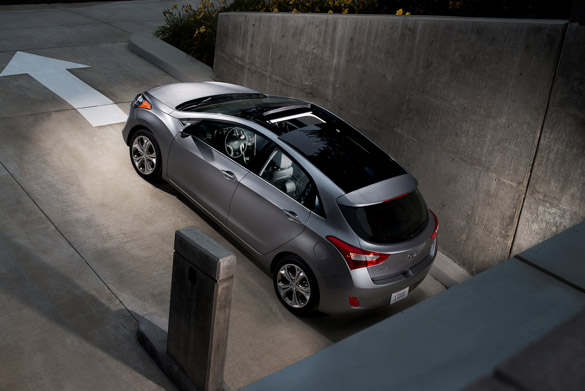
For the 2013 model year, Hyundai expands on its Elantra lineup with a GT hatchback model alongside of a new Coupe to build upon the Elantra sedan’s astounding recognition in holding the 2012 North American Car of the Year crown. The all-new 2013 Elantra GT hatchback steps up the compact car game to give consumers the most bang for their buck in a versatile, sporty and economical package.

The new 2013 Hyundai Elantra GT makes use of the additional ‘hatchback’ and cargo space without diminishing the rewarded styling attributes and economical drivetrain of the Elantra sedan. The new Elantra GT, adding even more entertainment value to the equation, utilizes the same 1.8-liter 148 horsepower and 131 ft-lbs. of torque 4-cylinder engine. Enthusiasts will be pleased to know that the Elantra GT comes standard with a 6-speed manual transmission, but can be optioned with a quick-shifting 6-speed automatic.

Driving characteristics of the Elantra GT are surprisingly nimble for a vehicle having a conservative horsepower figure on paper. The sporty handling characteristics of my loaded up Elantra GT with the Style and Tech packages, are somewhat evocative of much more powerful hatchbacks targeting a large enthusiast base. In a way, the new Elantra GT hatchback drives and handles like it could easily adapt to a much more powerful drivetrain without breaking a sweat. Though, you will suffer the wrath of Mr. Understeer should you find yourself crossing that fine line of being an outright hoon with the Elantra GT hatchback.

Sharing virtually the same engine and transmission as the Elantra sedan and coupe, with the same gear ratios, the 2013 Elantra GT has a sportier attitude and feels more agile when pushed near its lateral limits. I wouldn’t go as far as to say the Elantra GT is a pocket-rocket or in anyway poised for an autocross competition, but it has certainly added some ‘virtual’ enthusiasm to the Elantra line.

Hyundai’s choice for using the same powertrain throughout the Elantra line of new vehicles becomes crystal clear in knowing that you get a respectable amount of power output -yet you can consistently get well-over 30 mpg around town. During my time in the new 2013 Hyundai Elantra GT hatchback I saw a steady 36 mpg on the highway and about 27 mpg in town. The EPA estimates for the new Elantra GT are 26 mpg city and 37 mpg highway.

Surprisingly enough, being that the Elantra Sedan has a spacious interior almost reaching that of a mid-sized sedan, the Elantra GT scales things down a bit on the outside with a shortened wheelbase and over-all vehicle length. Visually, the Elantra GT does not appear to be much smaller than the Elantra sedan, but has, in fact, about 9 inches less in vehicle length and two inches shorter wheelbase. Those dimensions stand without compromising much seating area, too.

Front heated seats, heated mirrors, a/c cooling in the glove box, fog lights, USB connectivity, aux input, 16-inch aluminum wheels, driver-selectable steering modes (comfort, normal, sport) and Hyundai’s Blue Link telematics are just some of the highlighted standard features included on the new Elantra GT. Further setting the new Elantra GT apart from its mainstream competition is up to 51 cubic feet of available cargo space when the rear seats are folded down.

Seats in the new Elantra GT hatchback are comparable to the Elantra sedan providing just enough bolstering to keep you planted and comfortable enough for long hauls.

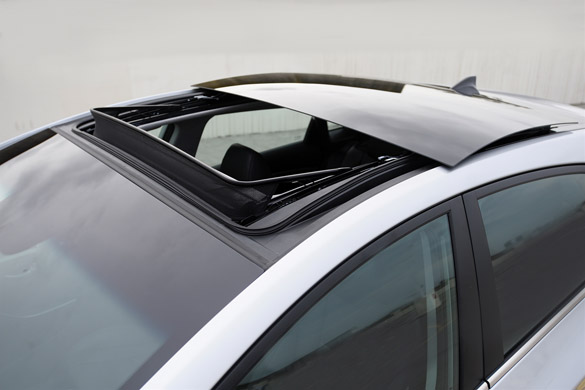
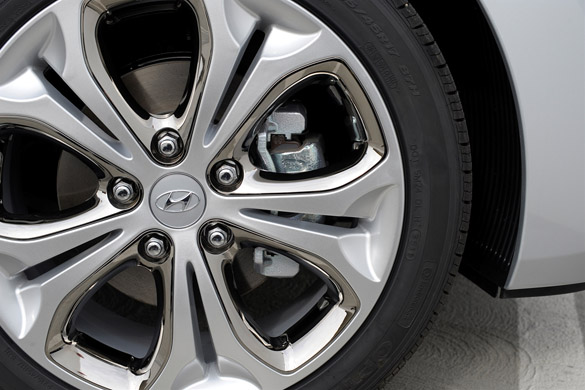
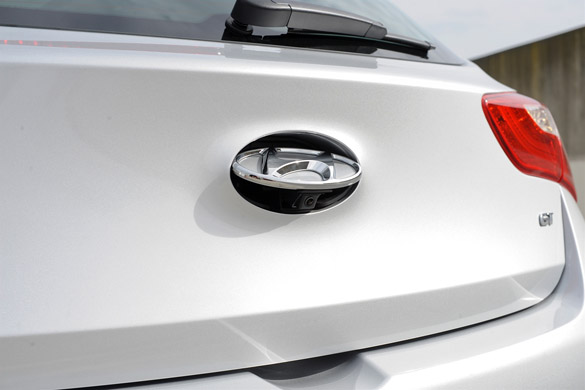
Interior space is not diminished despite shorter exterior dimensions in the Elantra GT when compared to the sedan. Moreover, ride quality is still good considering the use of new sachs dampers. Adding a performance-oriented Style package takes the suspension to a new level with increased spring rates giving the Elantra GT a sporty ride coupled with larger 17-inch wheels. My 2013 Hyundai Elantra GT test vehicle came equipped with the Style package and Tech package adding leather seats, leather-wrapped steering wheel, double-panel sunroof, power driver’s seat, aluminum pedals, auto up-down driver’s window control, navigation system, rearview camera (hidden behind a motorized Hyundai logo on the rear hatch), auto headlights, auto climate control and keyless/proximity key with push-button start.

Versatility is an expected uncompromised trait of the traditional hatchback and the new Elantra GT does not disappoint in this aspect. Interior seating area in the Elantra GT hatchback is about the same as the sedan with the major interior volume difference being in the cargo space. The Elantra GT comes with 60/40 split rear seatbacks to fold down for the need to expand on cargo room in the rear. The Elantra GT, with a slightly smaller wheelbase and length dimensions, manages to serve up more cargo area than its competition. There is even a separate, but shallow, storage bin under the cargo area floor.

Hyundai continues to impress not just with a nameplate that has received new-found recognition in America, but with new extensions of current products that tend to exceed expectations. The all-new 2013 Hyundai Elantra GT hatchback is no exception to exceeding my expectations in an affordable 5-door hatchback considering it blends well into the DNA of light-hearted enthusiasts. The new 2013 Hyundai Elantra GT hatchback, with a starting price of $18,395 for a 6-speed manual equipped vehicle, is an eagerly awaiting prize for consumers seeking exceptional style, sportiness and value wrapped up in a versatile and well-equipped package.
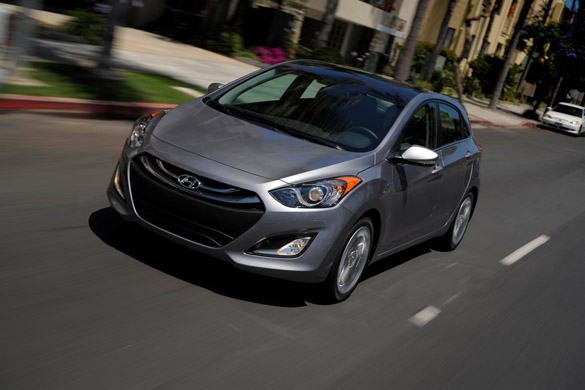
2013-hyundai-elantra-gt
2013-hyundai-elantra-gt-drive
2013-hyundai-elantra-gt-distance
2013-hyundai-elantra-gt-side
2013-hyundai-elantra-gt-top
2013-hyundai-elantra-gt-rear
2013-hyundai-elantra-gt-dual-roof
2013-hyundai-elantra-gt-wheel-tire
2013-hyundai-elantra-gt-backup-camera
2013-hyundai-elantra-gt-dashboard
2013-hyundai-elantra-gt-gauge-cluster
2013-hyundai-elantra-gt-cargo
2013-hyundai-elantra-gt-engine

Copyright: 2012 AutomotiveAddicts.com

SPECIFICATIONS

Price: Base Elantra GT $18,395 As-Tested $
Engine: 1.8-liter 4cyl 148hp/131 ft-lbs torque
Drive: FWD
Wheelbase: 104.3in.
Total length: 169.3in.
Total width: 70.1in.
Total height: 57.9in.
Track: f/r-61/61.5in.
Turning circle: 34.8ft.
Headroom: f/r-40.1/37.9in.
Legroom: f/r-42.0/34.6in.
Fuel tank: 12.8 gallons
EPA fuel economy: 27 mpg city/ 30 mpg highway (6-speed automatic transmission)
0-60mph: 9.5 seconds
EPA cargo volume: 23.0cu.ft. / Max w/ rear seats folded: 51.0 cu.ft.
Curb weight: 2,745lbs.

Source: Automotive Addicts

Review: Epson WorkForce WF-2540 All-in-One Printer

The $130 (as of 12/24/2012) Epson Workforce WF-2540 All-in-One Printer (copy/fax/print/scan) has a 30-page automatic document feeder, it outputs nice text
and graphics, and it has triple-threat USB, Ethernet, and Wi-Fi connectivity. Those are attractive features on any color inkjet multifunction, but there’s bad news:
Ink costs are high, and glossy photos print at some of the slowest times we’ve ever seen. Scan speed is nothing to write home about, either.

Setting up the WF-2540 is a breeze. With USB, Ethernet, and Wi-Fi all on board, you’re free to attach it to a PC or network in any location you wish. The
WF-2540’s smallish non-operational footprint: 15.4 inches wide, by 14.8 inches deep, by 8.7-inch high also aids in the versatile placement. However, those
numbers (shown in a photo on Epson’s Web site), are a tad misleading. When you extend the guide for the 100-sheet rear vertical feed (there is no flat input tray),
the height climbs to 11 or so inches. With both the guide and control panel in operating position, the depth is more like 17 inches. That’s still
relatively compact, but not as small as it would be with a bottom-mounted tray.

The WF-2540’s software bundle is basic, but capable. The Epson Scan program is intuitive and mature, and it will handle any scanning task you throw at it.
That would be everything except automatic two-sided scanning, which the WF-2540 does not support. Abbyy FineReader Sprint 9.5 is on hand to take care of OCR
chores and there’s also the full gamut of Web and local wireless printing options.

I didn’t find using the WF-2540 quite as intuitive as many printers. The 2.5-inch LCD display, buttons, and keypad are fine; there’s just something a
little off in the implementation. You’re forced to hit the OK button at times when the menu/home button would normally function, and there are just enough
other little oddities to make the experience less than top-shelf. You’ll get used to it, but it could be done better.

To read this article in full or to leave a comment, please click here

Source: PCWorld

Giada announces compact ARM-based Android desktop

A company known for making downsized PCs has announced two ARM-based desktop computers that will be shipping “soon” with Android 4.0 (Ice Cream Sandwich).

Giada has made its ARM desktops, the Q10 and Q11 very compact. Both measure 7.48-by-5.87-by-1.0 inches and, when mounted in the vertical position don’t take up much more space on a desktop than a typical router.

The pint-sized desktops are built around the Allwins A10 ARM processor, which runs at 1GHz, and have Mali-400 MP4 graphics.

Inputs/Outputs include five USB 2.0 ports (four rear, one front), VGA and HDMI ports, an SD/MMC card reader, RJ45 jack, a fast Ethernet port, and support for Wi-Fi and Bluetooth.

To read this article in full or to leave a comment, please click here

Source: PCWorld

ETC: Innovative trailer concept inspired by USB drive [w/video]

By George Kennedy

Filed under: , , ,

When it comes to camping, Americans tend to either rough it with tents or go for broke in massive bus-size recreational vehicles. Down in Australia and New Zealand, the caravan reigns supreme. Not to be confused with the Dodge minivan offering, caravans provide humble accommodations for vacationing, but they can be pulled by much smaller vehicles than, say, a fullsize Airstream trailer.

New Zealand-based design house W2 has unveiled a new twist on the caravan with the Romotow, and it is clearly not your ordinary camper trailer. Claimed to be inspired by a USB drive, this trailer folds in and out of itself, providing extra living space. Lightweight materials are used, and the concept also features power-assisted braking, self-leveling pads and shocks and a backup camera. The interior features a bathroom, kitchenette, louvers for cross ventilation, and available features such as deck area and sliding doors.

W2 is currently at the design and testing stage. A fully functional Romotow should be ready by 2015. If you are a camper that’s tired of roughing it, or one who enjoys the outdoors but would prefer more domestic confines, the Romotow looks like a solid option for a camping tr- er, caravan. Check out more on this wild concept in the video below.

Continue reading Innovative trailer concept inspired by USB drive [w/video]

Innovative trailer concept inspired by USB drive [w/video] originally appeared on Autoblog on Sun, 23 Dec 2012 08:59:00 EST. Please see our terms for use of feeds.

Permalink | Email this | Comments

Source: Autoblog

Last-minute gifts for discerning PC nerds

Does the computer geek in your life constantly gulp down canned, bubbly beverages? This mini-fridge connects to a PC via USB to keep your cans chilled long after you’ve yanked them from the maxi-fridge. Just swap in a new can whenever you pull the old one out, and you’ll have a never-ending stream of refreshing drinks, making the USB LED Beverage Cooler the perfect accessory for epic gaming or coding sessions. The calm blue glow of the internal LED even makes your can look cold.

$25 at ThinkGeek

Source: PCWorld

Plasma Active for Nexus 7: Running the touch-optimized Plasma Active Linux Distribution on Nexus 7

We are very happy to announce the first testing release of Plasma Active for Nexus 7. Plasma Active, in a nutshell, is a Linux distribution (based on Mer as a core) that is specifically optimized for tablet computers.

Tuomas Kulve and me had been working on the Mer “hardware-adaptation” for Nexus 7 that enables to run Mer-based distributions like Plasma Active on the Nexus 7. Based on this hardware-adaptation and the work from Plasma Active we created an installable “image” that can be used to “flash” the current Plasma Active 3 on the Nexus 7.

Event though very much already works reasonably well, there are still some glitches. So, please don’t expect a 100% working system. We released this as testing version in order to get more feedback and with the hope that others may also contribute to the Mer Nexus 7 hardware-adaptation as well.

Here are two photos of Plasma Active running on the Nexus 7:

12120059 12120058

To see the installation instructions read on.

Installation

Please be warned that, by following the instructions stated here, you will lose the warranty on your Nexus 7. You do all the things described here on your own responsibility.

You can get the current version of Plasma Active for Nexus 7 including the MOSLO here. You will need the “plasma-active-*.tar.bz2″ as well as the “moslo-nexus7-*.tar.gz” files. The “*.ks” file is the file that was used to create the rootfs tarball (“*.tar.bz2″).

In order to install Plasma Active on the Nexus 7 you need to first unlock the boot loader. How this is done is, e.g., explained here. Note that you need the fastboot tool that is mentioned in that link also at least for flashing the MOSLO to the Nexus 7. We assume that you know how to get the required tools for your desktop operating system.

After you unlocked the bootloader you need to reboot and keep the volume down key pressed. You should see the Nexus 7 bootloader showing “Start”.

Connect the Nexus 7 to your PC with the USB cable. Make sure that no other USB devices are plugged-in. Flash the MOSLO using fastboot as follows:

fastboot -c “ro console=tty1 rootwait rootfstype=ext4” flash:raw boot zImage-moslo initrd-moslo

We assume that you already extracted the”moslo-nexus7-*.tar.gz” and know where the relevant files are. Furthermore, note that this is an exemplary kernel command line. You could also specify options like “fbcon=rotate:1″ for rotating the kernel output into landscape or “quiet” for suppressing kernel output. For the first tests it is strongly suggested to keep the kernel command line as-is.

When flashing of the MOSLO succeeded keep the Nexus 7 connected to your computer and press the power button in order to boot into MOSLO. With the Nexus 7 connected to your computer via USB, MOSLO should automatically export the userdata partition as USB storage device. You can check, e.g., via “dmesg” that a new USB device showed up.

In this short guide we will use the entire userdata partition and don’t set up multiboot. At first we format the userdata partition as ext4 file system:

mkfs.ext4 /dev/sdX
# /dev/sdX is where the exported userdata partition showed up.

Next, we mount the userdata partition and extract the rootfs tarball to it:

mount /dev/sdX /mnt/foo
cd /mnt/foo
tar xvf /plasma-active-nexus7-*.tar.bz2
sync
cd –
umount /mnt/foo

That’s it. Next is to reboot into your Plasma Active installation.

In order to boot into Plasma Active simply detach the Nexus 7 from your computer by pulling the USB cable. MOSLO should detect this and initiate the kexec hardboot procedure. You should see a notice that the device will reboot in 5 seconds. Do not press any key during reboot.

The device then reboots and the same bootloader “Start” screen should appear as at the beginning. This time simply press the power key. Your Nexus 7 should now boot into Plasma Active. Please note that I could successfully test this procedure with the 8GB model. However, it failed with the 3G 32GB model.

If there are problems booting into Plasma Active this way you can try to restart the device holding down the volume down key. When the bootloader screen appears you can then try to directly boot into Plasma Active with the MOSLO kernel as follows:

fastboot -c “root=/dev/mmcblk0pX ro console=tty1 rootwait rootfstype=ext4” boot zImage-moslo
# For the non-3G models X is 9.
# For the 3G model X is 10.

Note that when you reboot Plasma Active your device will reboot twice. At first the MOSLO will be booted which then performs a kexec hardboot and reboots into the actual Plasma Active.

If you don’t need the MOSLO and want to boot directly into Plasma Active on reboot you can do this permanently by flashing the MOSLO kernel as follows:

fastboot -c “root=/dev/mmcblk0pX ro console=tty1 rootwait rootfstype=ext4” flash:raw boot zImage-moslo
# For the non-3G models X is 9.
# For the 3G model X is 10.

You can re-install the MOSLO at any time later without any problem. You can also temporarily boot into MOSLO by following the MOSLO installation instructions above and leaving out “flash:raw”.

We hope that you like our “small Christmas present”. ;) We had very much fun hacking on the hardware-adaptation and will continue our work to make Plasma Active run even better on Nexus 7. :) We will also update the Mer Wiki with more detailed instructions for running Plasma Active on Nexus 7.


Source: Planet KDE

Power trips: 10 ultraportable smartphone chargers

JuiceBuddy calls its portable iPhone-and-other-devices charger ”the world’s smallest and most portable iPhone charger.” This tiny device, about the size of an iPhone wall plug, fits neatly onto a keychain and sports built-in prongs, a built-in 30-pin connector, and a female USB port for charging other USB-powered devices. It is not, however, a portable battery—rather, it’s a portable wall charger that lets you charge devices using a standard wall socket.

Still, since it does away with the iPhone cable, you can effectively charge your device whenever you’re near an outlet. It can charge an iPad, but it’s designed so that you balance your phone on top of the charger while it’s charging. Needless to say, the weight of an iPad might be too much to keep this charger from falling off the wall. If you need something tailored for a tablet, check out these 10 portable tablet chargers.

Price: $24.95, JuiceBuddy

Source: PCWorld

The best MFPs you can buy today

Multifunction printers (MFPs) let you handle paper and digital content with equal ease as they have a printer base and a scanner on top. These versatile machines allow you to upgrade your home office without much hassle, and they’re underrated gifts for students or loved ones.

The multifunction market is growing, so there are models available for every budget and user; the options range from budget-friendly to envy-inducing ones. Home and student users vary widely in how much they print or scan; how many users need access to the printer; and whether their output skews toward photos, other creative projects, or home-office tasks. There are a few rules of thumb depending on what the printer is being used for.

A budget model, even if it’s slow and has pricey inks, could actually be a decent deal if you don’t print or scan much. Busier households will want to buy a higher-priced model that has cheaper inks and better paper-handling features, including an automatic document feeder (ADF) for the scanner and automatic duplex (two-sided) printing. Built-in Wi-Fi is increasingly common, and it’s essential if you want to share the printer among roommates or family members. Photo enthusiasts should look for useful extras, such as dedicated photo-paper trays, six-ink systems, or the ability to print on specially coated CD and DVD media.

Best budget MFP for home (around $100)
Robert CardinThe Epson Expression Home XP-400 Small-in-One is a bargain with just a few compromises.
On the budget end (around $100), the Epson Expression Home XP-400 Small-in-One is a bargain with just a few compromises. It’s compact, easy to use, and the output is quite nice. Standard connections are USB and Wi-Fi, and it’s relatively quick. The inks are expensive, but that’s acceptable for low-volume printing given the printer’s other strengths. Duplex (two-sided) printing is manual and only for PC users.
To read this article in full or to leave a comment, please click here

Source: PCWorld

Battle of the pint-size PCs: Cotton Candy, MK802 II, and Raspberry Pi face off

Today’s smartphones are pretty good computers, but we’ve tried out three computational powerhouses that make the slimmest phone look like ENIAC. (The world’s first electronic computer, unveiled in 1946, weighed 27 tons and consumed 1800 square feet of floor space.) The Cotton Candy, the MK802 II, and the Raspberry Pi are amazingly tiny, incredibly inexpensive, and eminently customizable. They make terrific platforms for hobbyists fond of experimentation, and they’re ideal for students interested in learning how to program, but they can also serve as ordinary productivity machines.

These miniature marvels eschew the power-hungry x86 processors found in desktop and laptop PCs in favor of mobile CPUs and GPUs, but each relies on an external monitor or HDTV—connected via HDMI—to display its user interface and other video output. In fact, the Cotton Candy and the MK802 II are the same shape and size as a USB memory stick, and plug directly into a TV. Thanks to that skimpy hardware, these computers can operate on just the trickle of energy provided by the display they’re connected to. Alternatively, you can plug in the same type of USB AC power adapter that modern smartphones and tablets use.

Much of the appeal of these pint-size PCs lies in their software versatility. Each device can boot from a MicroSD card containing an operating system disc image (typically some flavor of Android or a Linux distro tailored to its hardware set). If your tinkering utterly demolishes the stability of the OS, you can just overwrite the memory card with a new image and start over.

After comprehensive testing, I found that each of these micro PCs has its upside and downside, but all three devices shine in distinctly different scenarios.

To read this article in full or to leave a comment, please click here

Source: PCWorld

Linksys EA6500 review: A user-friendly 802.11ac router with decent performance

Cisco arrived late to the 802.11ac party, but its Linksys EA6500 (it’s hard to say the entire name—the Linksys Video Pro AC1750 Smart Wi-Fi Router EA6500—in a single breath) is a very solid, easy-to-use dual-band router with one unique, gee-whiz feature.

This feature is called SimpleTap, and it uses near-field communication (NFC) technology to enable you to join NFC-enabled mobile devices to your network by tapping them with a provided plastic card. That simple physical action instantly provides the device with the router’s security credentials. Unlike with WPS (Wi-Fi Protected Setup), you never need to touch the router when using SimpleTap. It does, however, require you to install a Cisco app on the mobile device. But we call it a gee-whiz feature because relatively few mobile devices are NFC enabled (Samsung’s Galaxy S III smartphone being the most notable). The SimpleTap card is something of a security risk unless you lock it away, and the feature is easily disabled if you don’t want to use it.

The EA6500 remains easy for inexperienced users to set up even if you can’t take advantage of SimpleTap, although this entails installing software on a client PC and creating an online account with Cisco. Experienced users who don’t want to use this cloud-based solution can log directly into the router to perform its initial configuration without setting up an account, but they won’t be able to take advantage of Cisco’s Smart Wi-Fi cloud service. The Smart Wi-Fi cloud service allows you to manage the router remotely from anywhere you have Internet access. It also enables you to remotely access data stored on an attached USB device (the EA6500 has two USB 2.0 ports, so you can share both storage and a printer on your network. You don’t need Smart Wi-Fi to enable local clients to use connected USB devices.)

Linksys also offers a collection of Smart Wi-Fi apps. These run on the router and/or your mobile devices to provide evertyhing from parental controls (so you can control when your children can go online, where they can go, and what they can do while they’re there) to media aggregators, device monitors, and IP camera viewers. These apps are a far simpler alternative to jiggering port-forwarding, static routing, DMZ, and other settings, but Cisco doesn’t prevent more advanced users from configuring any of these settings manually.

To read this article in full or to leave a comment, please click here

Source: PCWorld

Allowing a backup of a directory through apache/php

By cuvvvieI’ve made a webpage has a button that backs up the /var/www directory to a mounted USB drive. Assume that the page that this is on is completely safe and there is no way that anyone can see it. (unless actually relevant)

PHP code for the button: (I’m quite sure this isn’t the issue, it works with other scripts that don’t need the same privileges)

Code:
shell_exec(‘sh /etc/sh-scripts/www_custom.sh’);
www_custom.sh code: (made to exclude files under 5MB)

Code:
#!/bin/sh
find /var/www -type f -size -5120k | xargs sudo tar czvf /media/[thumbdrive directory]/www_backup.tar.gz
I can run the script fine under my user, because I’m a sudoer and can use NOPASSWD, but it won’t work with the button because www-data isn’t. I read that it’s a very poor idea to make apache a sudoer with NOPASSWD privileges so I won’t do that. If what I’m saying makes no sense, I’m sorry. I am quite new at this, and have looked around the best I could but found no suggested alternatives.

Any ideas to make this work, whether it’s a small tweak or a completely different approach, would be great. Thanks.
Source: The UNIX and Linux Forums

OEL 6.3 install disc not booting

By jimthompsonHi,
I downloaded the OEL 6.3 install disc from Oracle. It is an ISO image ( of around 3 Gb ) and its readme states it is bootable.

However when I try to boot this disc I am getting the error
Non System Disk or Disk Error. Replace and strike any key”

There was no problem downloading the ISO image or buring it to DVD. I have also checked the BIOS of the HP x86 server I am booting this on ( boot from CD is the first option – indeed you can hear the drive accessing )

I even tried copying the contents of the DVD to a USB external drive and booting from there – however I got the same Non System Disk message.

My hard drive is a completely blank / new hard drive.

Any thoughts as to what the problem could be would be greatly appreciated ?
Jim
Source: The UNIX and Linux Forums

Iomega StorCenter px2-300d NAS: A pretty performer

The Iomega px2-300d is a two-bay NAS box that delivers very good performance, excellent backup and surveillance features, and a helpful LCD that reports on the unit’s status (IP address, current time, storage remaining, and so on). Its EMC LifeLine operating system is also one of the more feature-rich ones in the industry. But you should buy this box bare—Iomega populates it with enterprise-class hard drives that jack up the price.

The px2-300d’s HTML administration interface (you use a browser to access it as with nearly all NAS boxes) is attractive and easy to use. The box itself sports a metal shell with easy-change, hot-swappable drive bays hidden behind a door on the front of the unit. Ports include two gigabit ethernet ports that support load balancing, link aggregation, and failover. There are also two USB 2.0 ports on the back of the unit and a single front-mounted USB 3.0 port. A VGA port allows direct viewing of security cameras controlled by the SecureMind surveillance software that Iomega includes with the box. The px2-300d is more than suitable as the brains of an ad hoc video security system—all you need are the cameras. SecureMind supports up to 16 of those, but you’ll want to make sure it’s compatible with any existing cameras you already own (my one-year-old D-Link DCS-942L was not).

The px2-300d supports JBOD and RAID 0 (striping), but our test unit arrived configured as RAID 1, where each drive is a mirror of the other. That’s how most businesses with two-bay boxes should roll, unless they’re backed up to the hilt, which brings us to another strength of the px2-300d: backup. Iomega provides portal-based access to other Iomega NAS devices for data replication, in addition to apps that let you back up to Amazon’s S3 service as well as EMC MozyConnect, Atmos, and Avamar services (EMC is Iomega’s parent company). The px2-300d supports rsync, too, so you can mirror data between it and a NAS box from Synology, QNAP, or any other manufacturer that supports that standard.

Other software features include iTunes and DLNA-certified media servers, plus full administration and user control including Active Directory support. Support for Apple File Sharing, FTP, SFTP, TFTP, NFS, SNMP, WebDAV, Windows DFS, Windows File Sharing, and iSCSI round out the accessibility features, and you can gain wireless connectivity by plugging in a USB Bluetooth adapter.
To read this article in full or to leave a comment, please click here
Source: PCWorld

Samsung ATIV Smart PC review: Samsung hits the Clover Trail

Whether Samsung is trying to confuse buyers into thinking they’re buying a laptop, or can’t make up its mind what it is, the Samsung ATIV Smart PC is (mostly) a tablet. Sure, it’s got a nearly full-size keyboard, but the keyboard is included as a detachable accessory. The slender tablet, just 9.9mm thin, is only three ounces heavier than an iPad. Even the CPU, the Atom Z2760 (“Clover Trail”) is Intel’s attempt to take on ARM-based CPUs. Users expecting a laptop may end up disappointed.

The ATIV Smart PC is really a harbinger of things to come. The Smart PC’s performance as a laptop leaves a lot to be desired, but it keeps up pretty well with the current crop of ARM-based tablets, both Android and iOS. But you can still dock it to its keyboard, carry it around and use it as a standard clamshell laptop. It also runs the full version of Windows 8, not the semi-crippled Windows RT that runs on Microsoft’s Surface RT. But it’s Clover Trail processor is 32-bit only, and while it’s fine for web browsing, email and light duty office chores, you’d never mistake it for a full-featured laptop.
The tablet under the hood
When you dig down into the specs, the hardware mix more closely resembles a tablet than a laptop. The system ships with 2GB of DDR2 memory and 64GB flash storage. The 11.6-inch screen is 1366 by 768 pixels. The screen is large for a tablet, but the resolution is more akin to the Surface RT than the iPad’s Retina display. However, 11.6 inches is small enough that you don’t see individual pixels, so it’s not a major issue.

All major controls are on the tablet part itself. The power button, volume controls, a power jack, one USB 2.0 port and a microSD card slot are built into the tablet. This makes the SmartPC pretty self-contained. The keyboard dock lacks any buttons or controls, but does include two additional USB 2.0 ports and a power connector. The power connector is needed, since the tablet’s power connector disappears into the dock latch.
To read this article in full or to leave a comment, please click here
Source: PCWorld

2013 Jeep Wrangler Rubicon 2-Door Review & Test Drive


‘THE KING OF OFF-ROAD WARRIORS’
You can go deep when you are piloting the Jeep Wrangler, and even deeper toward your off-road destination in the Rubicon.  In fact the Rubicon model has successfully traversed the nearly impossible Rubicon Trail in the Sierra Mountains just north of Sacramento.  This Trail Rated model has no foes when it comes to trail busting off the road.  While it’s off-road prowess in world renowned, the interior is more civilized, comfortable and high-tech as any other sport utility model on the market.

New for model year 2013 includes an easy-lift top mechanism and anew premium material soft top.  Wrangler also adds comfort and convenience features with new more comfortable and supportive seats, auto-dimming rearview mirror with LED map lighting, new interior lighting, dual windshield washers to better clear off debris, available Alpine speakers and a premium Tire Pressure Monitoring System.  For the 2013 model year, engineers for the Jeep Wrangler-the most capable and recognized vehicle in the world-focused their attention on interior ergonomics and 4X4 capability.  The goal was to make Wrangler even more enjoyable and comfortable on a daily basis from the inside out while continuing to improve its off-road ability.

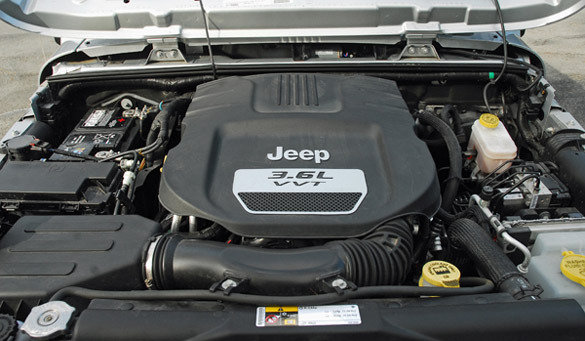
With the introduction of the all-new powertrain for 2012-a 3.6 liter, all-aluminum V6 engine with DOHC and VVT generating a trail-busting 285 hp and 260 lb.ft. of torque mated to a 6-speed manual or 5-speed automatic with AutoStick sequential shifting, Wrangler features improved on-road performance combined with even more off-road prowess.  Now, with new features added to the interior, the 2013 Wrangler adds improved comfort to its long list of benefits.  The result is an untouched level of capability off-road, combined with on-road dynamics, fuel efficiency and interior comfort that make Jeep Wrangler the perfect vehicle for fun daily driving, weekend trail-running or extreme off-road wheeling.

Passengers are now greeted by new front and rear seats.  Re-contoured and with larger side bolsters, these seats are comfortable for long drives while offering more support for sporting off-road activities.  Interior courtesy lighting is now found under the instrument panel as well as the cupholder areas for front and rear passengers.  An auto-dimming electro-chromatic mirror is standard on all models and will feature LED map lights for front passengers.  The optional premium tire pressure monitoring system can give direct read-outs for each individual tire.  The Rubicon receives a new optional wheel design-an aggressive 17 in. 10-hole alloy wheel with polished accents and a mid-gloss gray painted inner face.  My new Wrangler Rubicon came equipped with the beefy B.F. Goodrich LT255/75R17 in. T/A Mud Terrain Baja Champion tires with 3-ply sidewalls for extra strength off-road.

The 2013 Jeep Wrangler delivers unmatched off-road capability with legendary four-wheel drive and is produced with more than seven decades of 4X4 engineering experience.  Wrangler continues to offer a body-on-frame design, front and rear five-link suspension system, live axles, electronic lockers, four-wheel vented power assisted brakes, and is one of the few mid-size SUVs that offers a six-speed manual in addition to its five-speed automatic transmission.
The Jeep Wrangler is available with several axle gear ratios allowing customers to optimize fuel economy and/or vehicle capability.  Wrangler is available with 3.21, 3.73 or 4.10 ratios depending on model.  Also, Wrangler offers towing capability up to 3,500 lbs.

The Wrangler Rubicon that I tested features heavy-duty Dana 44 front and rear axles and the Rock-Trac NV241 two-speed transfer case with a 4.0:1 low range gear ratio.  Rubicon also includes electric front and rear locking differentials, disconnecting front sway bar and 32 in. tires wrapped with 17X7.5 in. alloy wheels all taking the Wrangler Rubicon to the highest level of capability.
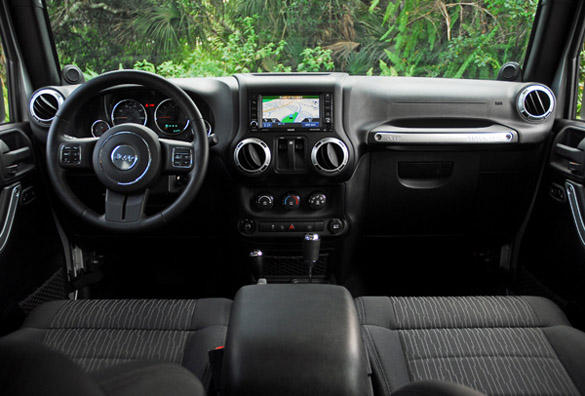
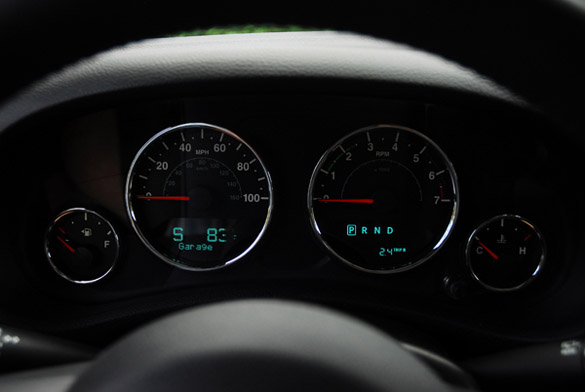
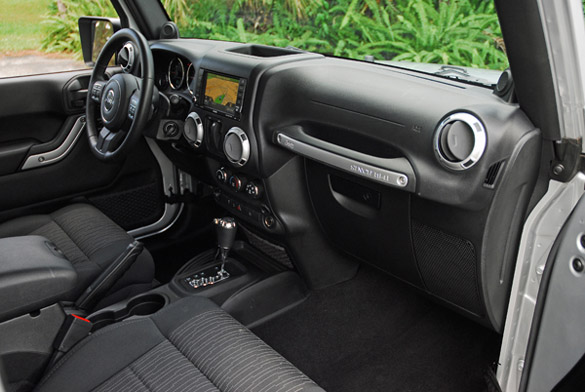
The interior combines rich styling, versatility, comfort and intuitive feature use.  Highlights include automatic temperature controls, heated seats, steering wheel controls for vehicle systems, dual cupholders, storage bin and armrest, dual map lights, storage bin above the center stack, variable speed wipers/washers, and thick cut-pile carpeting.  The large rear windows are engineered for greater visibility.  A USB port connects to the media center, a 12-volt accessory outlet.  Standard features in the Rubicon not mentioned above includes A/C, Media Center, 368-watt 7-speaker Infinity sound system with subwoofer, audio jack input for mobile devices, Sirius satellite radio, temperature/compass heading, tilt/leather-wrapped steering wheel, reclining front bucket seats with height-adjustable driver’s seat, giant grab handle above the glove box, rear fold-and-tumble seat, rear compartment covered storage, instrument cluster with chrome rings with more chrome  rings around the steering wheel center, switches and dials.  Front floor mats round out the new up-level interior.

Optional equipment in my Rubicon Wrangler included connectivity group, remote USB port, electronic vehicle information display, Uconnect voice command with Bluetooth, power/heated sideview mirrors, remote keyless entry, power one-touch windows/door locks, security system, hill descent control, body-color 3-piece hardtop, body- color fenders, freedom panel storage bag, rear window defroster/wiper/washer, tinted rear quarter and rear flip-up windows, media center 430N SAT/CD/DVD/MP3/HDD/Nav system with 40GB hardrive, with 28GB available storage, 6.5 in. touch screen display GPS navigation.
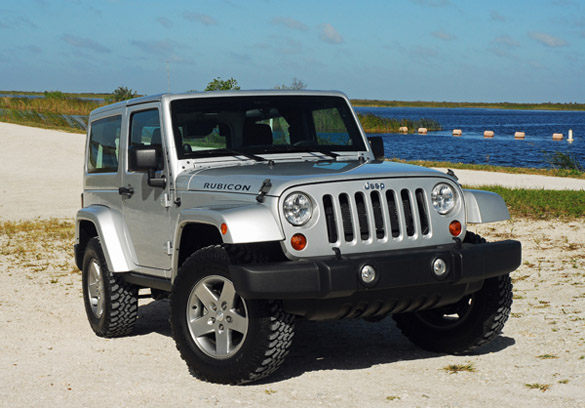
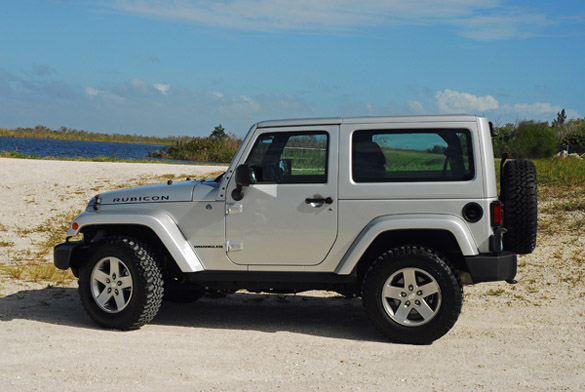
The Jeep Wrangler Rubicon features the signature classic round headlamps, seven-slot grille, trapezoid wheel flares, removable doors, exposed hinges, a fold-down windshield and innovative removable and convertible tops and half doors that allow the Wrangler to retain the brank’s iconic appearance and function, plus the 4X4 Trail rated badge on the driver’s-side and the Rubicon graphic on the side of the hood.  The exterior also includes side rock rails, swing-out rear door with flipper glass and holding the full-size spare tire, dual front tow hooks/single rear tow hook, transfer case skid plate shield, cruise control, fuel tank skid plate shield and front skid plate shield.

Standard safety systems include traction control, hydraulic brake assist, advanced multi-stage front airbags, electronic stability control, four-point roll bar, 3-point seatbelts with front pretensioners/load limiters, and electronic roll mitigation.
Built on more than 70 years of legendary heritage, Jeep is the authentic SUV with class-leading capability, craftsmanship and versatility for people who seek extraordinary journeys.  On road or way off-road, if you want to go deep do it in a Jeep!

2013 Jeep Wrangler Rubicon 2-Door Beauty Left Up Done Small
2013 Jeep Wrangler Rubicon 2-Door Beauty Headon LA Done Small
2013 Jeep Wrangler Rubicon 2-Door Beauty Side Done Small
2013 Jeep Wrangler Rubicon 2-Door Beauty Rear Done Small
2013 Jeep Wrangler Rubicon 2-Door Dashboard Done Small
2013 Jeep Wrangler Rubicon 2-Door Cluster Done Small
2013 Jeep Wrangler Rubicon 2-Door Passenger Side Interior Done Small
2013 Jeep Wrangler Rubicon 2-Door Door Trim Done Small
2013 Jeep Wrangler Rubicon 2-Door Engine Done Small

Copyright: 2012 Harvey Schwartz
SPECIFICATIONS

Price: Base Wrangler Rubicon 2-Door $29,995.00 / $35,940.00 as tested including $900.00 destination charges
Engine: 3.6 liter DOHC V6 285 hp @ 6400 rpm / 260 lb.ft. torque @ 4800 rpm
Suspension: F-live axle, link coil, leading arms, track bar, coil springs, high-pressure gas-charged monotube shocks, stabilizer bar R-live axle, link coil, trailing arms, track bar, coil springs, monotube high-pressure gas-charged shocks
Turning circle: 34.9 ft.
Brakes: F-11.9 in. vented discs/single-piston calipers R-11.9 in. vented discs/single-piston calipers/ABS/Hydraulic Brake Assist
Wheelbase: 95.4 in.
Track: F-61.9/R-61.9 in.
Overall length: 152.8 in.
Overall width: 73.7 in.
Overall height: 70.9 in.
Fuel tank: 18.6 gallons
Approach angle: 44.3
Breakover angle: 25.4
Departure angle: 40.4
Front axle to ground: 10.5 in.
Rear axle to ground: 10.2 in.
Curb weight: 4,129 lbs.
Headroom: F/R-41.3/40.3 in.
Legroom: F/R-41/35.6 in.
Cargo volume: rear seat upright-12.8/rear seat folded-55 cu.ft.
EPA mileage: 17mpg/city, 21mpg/highway

Source: Automotive Addicts

Review: Xerox ColorQube 8700/X solid-ink color multifunction printer

Xerox’s ColorQube product line, including the $2,799 (as of 12/05/2012) 8700/X multifunction (copy/fax/print/scan), is designed for corporate use in busy
workgroups, but it’s not a laser. The ColorQube technology uses blocks of crayon-like solid ink, rather than an inkjet printer’s liquid ink or a laser
printer’s toner particles. The result is no muss, no fuss, and a lot of fun sliding the ink blocks down their little chutes. With the ink layered on top,
like a laser printer, instead of absorbed into the paper, as with an inkjet printer, output is good no matter what kind of media you place in the tray. The
ColorQube 8700/X may be expensive, but it offers plenty of administrative features and capacity upgrades that make it a significant step up from color
laser multifunction models in lower price ranges.

The ColorQube 8700/X weighs 90 pounds and is sturdily built. It comes with 1GB of memory (not upgradable), plus an 80GB hard drive for storing jobs–a necessity when you’re
providing secure printing for a large workgroup.

Software setup for the ColorQube 8700/X is simple via either USB or ethernet. The printer ships with PC drivers for Postscript, PCL 5 and 6, as well as
XMS. The software is minimal, but effective, with a nice scanning program.

The ColorQube 8700/X is controlled via a spacious, 7-inch touchscreen control panel. Still, the unit is complex to learn. The many high-end features that
come with this corporate unit–administrative accounts, lots of options, secure printing, metering, and the like–are great. But having all the options on
one screen is rather daunting when you begin, though easier once you know the interface. Also, the touchscreen wasn’t as responsive as we’d like, requiring
more pressure than expected to operate.
To read this article in full or to leave a comment, please click here
Source: PCWorld

Dragon Quest X Will Use Cloud Saves

In a Japanese Nintendo Direct broadcast today, Nintendo President Satoru Iwata announced that Dragon Quest X on Wii and Wii U will use cloud saves, thereby alleviating storage issues for players.
When it became clear that USB storage wasn’t necessarily a viable way to expand the Wii U’s 32GB flash memory (8GB on the Basic machine), there was considerable concern that players would run out of space to conveniently store even their saves, let alone downloaded games. Dragon Quest X’s cloud saving means that there’s no danger of running out of space on your machine if you want to play Square-Enix’s gorgeous-looking MMO.
Dragon Quest X has been out on Wii for a while now in Japan, and it looks like Wii players will be able to transfer their games to Wii U.
Continue reading…
Source: IGN Video Games

Review: Samsung CLX-6260FW color laser multifunction printer

Everything concerning the Samsung CLX-6260FW color laser multifunction ($1,000 as of 11/28/2012) has class. The appearance and controls, the output, and even the software are first-rate. Even better, the CLX-6260FW wakes up quickly and performs its tasks with skill. Alas, as with many classy items, maintenance costs dearly: The CLX-6260FW’s toner is champagne-priced and then some.

The CLX-6260FW has all the connectivity most situations require: Wi-Fi, USB, and gigabit ethernet. The unit is controlled via a 4.3-inch touchscreen, and the menus and options are arranged intuitively. As the CLX-6260FW faxes, a numeric keypad is present for dialing phone numbers as well as entering four-digit secure printing PINs. In addition to the usual cancel and other buttons, there’s also an Eco button that switches the printer into economy mode where it uses less toner– particularly apropos with this unit.

The CLX-6260FW comes standard with 512MB of memory, and it’s upgradeable to 1GB. There’s also a USB-to-parallel-port option for $100. The specified monthly duty cycle is 60,000 pages, and the unit carries a one-year warranty. The provided software supports all the chores of which the CLX-6260FW is capable (copy/fax/print/scan), as well as email and Internet printing. There’s also scanning directly to social media sites and even conversion to e-Books.

The CLX-6260FW seems a bit short in standard paper capacity, even for a small workgroup. The bottom cassette holds 250 sheets, and the multi-purpose tray that folds down from just above it holds 50 sheets. The output tray, which is somewhat claustrophobically situated beneath the top-mounted scanner, holds 100 sheets. An affordable $189.99, 520-sheet, bottom-mounted auxiliary tray is available to increase total capacity to 820 sheets. The ADF (automatic document feeder) holds 100 sheets. Two-sided (duplex) printing and scanning are both fully automated.To read this article in full or to leave a comment, please click here
Source: PCWorld