Tag Archives: OS

Windows 8.1 steps up security with biometrics, encryption, and more

Most of the attention on Windows 8.1 Preview emphasizes the many interface changes and new features. In the background, Windows 8.1 also offers a number of security enhancements that will help keep the new OS in step with changing times—how we browse, how we share data among devices, and which devices we use. The improvements range from better browser security to built-in encryption, to remote wiping of business files. We even tracked down a few sneak-preview screenshots of things that have been announced but aren’t part of the Preview release.

IE 11 will have better default security

Windows 8.1 will include Internet Explorer (IE) 11, whose flashiest new feature will be support for multiple windows. The browser’s security enhancements should help keep the new experience exciting, but not scary.

The Enhanced Protected Mode (EPM) that was added in IE 10 will now be turned on by default in the old-style desktop application, instead of just the IE app in the newer Windows UI. When turned on, EPM enables a sandbox-like feature called AppContainer, which restricts IE tabs from accessing sensitive data and system files. Additionally, EPM uses 64-bit tabs, offering more protection against attacks than 32-bit tabs provide.

The EPM option is automatically enabled in the Advanced Settings of Internet Options for the IE 11 desktop application.

IE 11 will also let antivirus programs have deeper access to the browser. This will allow binary extensions—like the often exploited ActiveX controls—to be scanned by an antimalware program before they’re executed. This could also reduce the chances of malware infection or attack via rogue extensions and toolbars.

To read this article in full or to leave a comment, please click here

…read more

Source: FULL ARTICLE at PCWorld

NIM on firewalled environment

By depam

Currently setting up NIM on a firewalled environment and multiple gateways. By following the ports need to be opened on the below link:

IBM NIM Communication within a Firewall Environment – United States

I have asked network team to open up firewall but omitted the 32,768 to 65,535 port as our security won’t be able to open this big port ranges.

It seems that NFS by using mountd can be specified a specific port but TFTP specifically needs this high port:

tftp:
Client UDP Master UDP 69
Client UDP Master UDP (random port between 32768 and 65535)

Here the client communicates via UDP to the master’s port 69. The port that the client uses cannot be predicted.
Then, the master responds from port 69 back to the same port that made the request.
I used the bidirectional arrow to represent this.
Then random UDP ports are chosen on both the master and the client to affect the transfer of data. Again bidirectional.

Does this mean that nim mksysb might work but OS restore wont?

…read more

Source: FULL ARTICLE at The UNIX and Linux Forums

Lock and encode your flash drives with BitLocker To Go encryption in Windows 8

Losing your USB flash drive before a big presentation is a terrible way to start a Monday. Losing a drive that also contains valuable personal data or confidential company information will ruin your whole week—and maybe your career. Luckily, Windows users can easily hedge their bets against such disasters by using the free BitLocker To Go utility to quickly encrypt portable drives.

One of the best-kept secrets of Windows 8, BitLocker To Go is the latest incarnation of an encryption tool that’s been included with select versions of Windows since Microsoft first introduced BitLocker disk encryption with Vista, way back in 2007. Like most encryption utilities, BitLocker protects your data by making it unreadable or inaccessible without a password or some other form of unique key. To secure the data, BitLocker uses an AES (Advanced Encryption Standard) encryption algorithm with a 128-bit key plus a data-mixing algorithmic function (known as an Elephant diffuser) for disk-related security features not offered by AES alone.

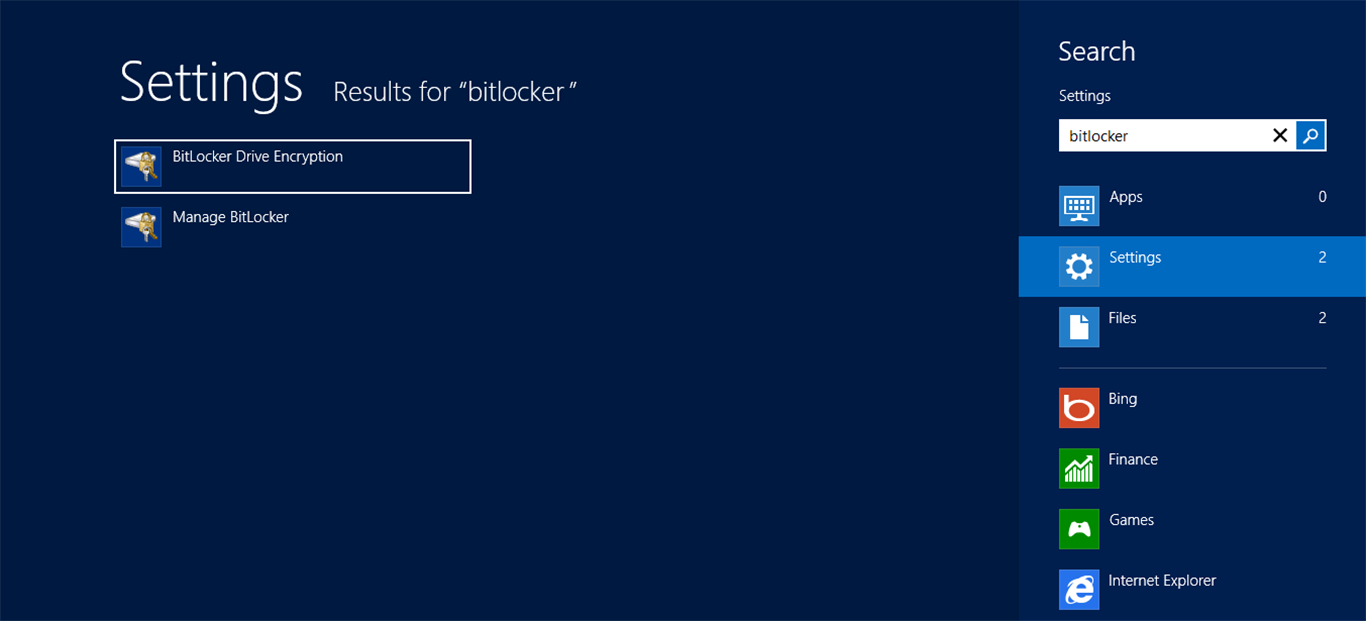
BitLocker To Go can be enabled in the new Windows 8 UI by searching for the feature or via File Explorer while in Desktop mode.

Not only does BitLocker give users the ability to encrypt their OS volume to prevent access to a system and the data stored on it, but a feature called BitLocker To Go (introduced with Windows 7) enables encryption of externally attached portable drives. It uses the same encryption technology, but instead of protecting an OS volume, it’s designed to secure data stored on a portable drive, such as a USB flash or hard-disk drive. And with Windows 8, Microsoft has updated BitLocker To Go with some new features that make it faster and easier to use than ever before.

Using BitLocker To Go on Windows 8

While the lion’s share of the new features is meant to reduce headaches for IT professionals managing BitLocker use in business, Microsoft has also sped up the initial drive encryption process. BitLocker To Go, which is available on Windows 8 Professional and Enterprise editions, now has the ability to progressively encrypt only the portions of a drive you’re actually using, instead of the entire drive (as was the case with Windows 7). The old method is still available for disks that already contain data, but if you’ve got a fresh, clean drive you’d like to protect with BitLocker To Go, enabling drive encryption can be completed in seconds, not minutes or even hours, depending on the size of the drive. Instead, when you add new data the drive, it will be automatically encrypted while BitLocker To Go is enabled.
To read this article in full or to leave a comment, please click here
Source: PCWorld  

Windows Blue may help, but Microsoft still faces hurdles

Microsoft’s failure thus far to significantly spark PC and tablet sales with Windows 8 has put high expectations on an expected 2013 refresh of the OS, dubbed “Blue.”

But changes to the operating system’s feature set, tweaks to its user interface (UI) and modifications to some of its subcomponents are actually solutions to minor problems, analysts said. They point to more important issues like pricing and positioning, app shortages, and enterprise reluctance as beyond the scope of an upgrade. (See also “Windows Blue wish list: 15 must-see improvements.”)

Few Blue hints

Microsoft has said little of Blue, the code name for the first Windows 8 upgrade, reportedly to ship this summer or fall, as well as the moniker for the company’s faster-paced development and release schedule. It’s only acknowledged the code name and touted what it’s called a new “continuous” update strategy for Windows on desktops, tablets, servers, and smartphones.

For example, last week Microsoft’s CFO Peter Klein used the “Windows Blue” label, and added, “With Windows 8, we are setting a new, accelerated pace for updates and innovations.”

To read this article in full or to leave a comment, please click here

Source: FULL ARTICLE at PCWorld
Connect using ALOM to Sun Fire V210

By danijeljames

I have bought from eBay a second hand Sun Fire V210 server and I’m really stumped at the lack of complete instructions on how to connect to it.

I don’t have a Windows machine, I’ve only got Ubuntu and OS X computers. None of them have an old RS-232 port on them either.

In saying that, I have no problem going out and buying cheap Windows 98 laptop for $50 that has RS-232 port available on it if that is what I need.

So can someone tell me, and don’t reply with something vague like “use hyper terminal in Windows” or “connect using terminal” because that’s seriously not going to point me in any direction. I’ve read nearly all the manuals and guides from Sun/Oracle, but it’s just not making sense and I don’t want to waste money on something that doesn’t fit the bill because I didn’t understand the instructions.

To put it simply, I just need the basic instructions on what I need, how to connect, and from there, how I can go about installing Solaris 10 on this sytem. Once I’ve got Solaris 10 on there, I won’t need any more help and I can be off of my way to learn some things for myself.

Thank you in advance to anyone who can save me anymore grief that I already have given myself.

PS – There is no OS on there at the moment. The HDD’s have been cleared. And there is no CD/DVD drive. I need to go buy one to install the OS.

Source: FULL ARTICLE at The UNIX and Linux Forums

The best Windows 8 machines you can buy today

We’ve had about six months to play with Windows 8 (like it or not) and with the first generation of hardware designed for the new OS. So now, with PCs based on Intel’s Haswell CPU poised on the horizon, it’s time to take stock of the best Windows 8 hardware available today. You may be able to snap one up for a bargain-basement price as the industry clears out inventory in anticipation of second-gen machines.

Our top picks among first-gen Windows 8 devices offer touch capability, along with something deeper: a new take on what it means to be a tablet, a laptop, or a hybrid that lies somewhere in between. As for desktops, members of the latest generation of all-in-ones provide generous screen real estate for both Live Tiles and touch features. We applaud all of the following machines for the way they’ve risen to the Windows 8 challenge.

Windows 8 tablets: The best and the boldest

Yes, the Surface Pro is the best available Windows 8 tablet. Though it’s not quite the iPad killer Microsoft should have created, it’s a huge improvement over Surface RT, thanks to a vastly better display, Ultrabook-caliber components, and a full version of Windows 8 Pro.

Surface Pro can run all of the legacy desktop applications you need for serious productivity—and run them well, outpacing many full-fledged Windows 8 hybrids. And who doesn’t love its smart industrial design? Its VaporMg chassis still inspires us today, offering a level of fit and finish missing from competing tablets.

To read this article in full or to leave a comment, please click here

From: http://www.pcworld.com/article/2036003/the-best-windows-8-machines-you-can-buy-today.html#tk.rss_all

12 ways Windows 8 dominates the OS competition

While we’re on the topic of hardware, let’s talk monitors. More specifically, let’s talk lots of monitors.

Display die-hards love Windows 8’s deeply improved multi-monitor functionality—it’s a huge step up over Windows 7’s several-screen support. Is it perfect? Nope. But it’s pretty darned good, and an absolute cinch to set up.

Macs and Linux boxes have dead-simple multi-monitor software, too, but they can be a hassle to set up on the hardware side. Mac desktops drive video via
Mini DisplayPort or Thunderbolt connectors. Both technologies are utterly awesome, don’t get me wrong—but neither is anywhere near as
ubiquitous as HDMI, DVI, or VGA. Linux multiple-monitor support works great, except for when it doesn’t. Finding working monitor drivers can occasionally be a hassle, and Linux sometimes stutters while trying to drive multi-monitor setups in multi-GPU rigs.

From: http://www.pcworld.com/article/2035821/12-ways-windows-8-dominates-the-os-competition.html#tk.rss_all

Three quick ways to ease your transition to Windows 8

Over the past few weeks I’ve had the opportunity to test-drive a couple Windows 8 laptops, and even though I’ve used the OS intermittently for months now, I still find it jarring every time the Metro interface (a.k.a. Start screen) appears.

Indeed, for anyone brand new to Windows 8, anyone who’s already familiar with an earlier version of Windows, that tile-based interface can be startling, confusing, and ultimately very frustrating.

Can you learn it? Sure. Should you have to? No. With a few simple steps, you can make your new Windows 8 PC much more familiar, both in look and operation.

1. Forget that Metro exists

To read this article in full or to leave a comment, please click here

From: http://www.pcworld.com/article/2036040/three-quick-ways-to-ease-your-transition-to-windows-8.html#tk.rss_all

Chromebooks vie to replace netbooks

The once-hot netbook may have been decimated by the arrival of tablets, but inexpensive, lightweight laptops are showing staying power. The latest iteration in that category is Chromebooks, laptops with Google’s Chrome OS, which is seen as a lightweight OS alternative to Windows for users who do most of their computing on the Web. There is substantial backing for Chromebooks with companies like Google, Lenovo, Samsung, Hewlett-Packard and Acer offering models with different screen sizes and hardware.

A first wave of Chromebooks released in 2011 from Samsung and Acer failed to catch on, but a new wave that went on sale late last year have better hardware and a more refined OS. Typical features include 100GB of Google Cloud storage, Wi-Fi, webcams, and in some models, 3G connectivity. However, IDC suggested that early sales of Chromebooks have been weak, and it remains to be seen if they will fill the void left by netbooks.

Acer’s Chromebook C7

The US$199.99 Acer Chromebook C7 is the cheapest Chrome OS laptop available. It has an 11.6-inch screen and a 320GB hard drive, while other models have 16GB of local solid-state storage. One disappointment is the three-and-a-half hours of battery life, while more expensive models offer up to six-and-a-half hours. The C7 has an Intel Celeron dual-core processor running at 1.1GHz, 2GB of memory and an HDMI port. Like a majority of other Chromebooks, the screen displays images at a resolution of 1366 by 768. Acer maintains the C7 has sold better than expected, and has said it will come out with more Chromebook models in the future.

To read this article in full or to leave a comment, please click here

From: http://www.pcworld.com/article/2035904/chromebooks-vie-to-replace-netbooks.html#tk.rss_all

Review: LyX is an advanced but easy-to-use document processor based on LaTeX typesetting

When one thinks of document editors, it’s usually Microsoft Word and Google Docs that come to mind. But in the world of word processors there are marquee names, and then there are some worthies not yet in the limelight. Advanced cross-platform document processor LyX has its merits. LyX is free and Open Source. LyX’s workflow is something of an adjustment from Microsoft Word, but learning it can pay off. The results are similar to professional typesetting.

Creating our first document on LyX is as simple as any other: Go to File – New. You can copy-paste or type your first text without bothering about any formatting. To start with formatting, we will say LyX uses Environments. Environments are lot like Microsoft Word and its use of Styles to format documents with consistency. But Environments give far greater control across a variety of document types.

Document processors are usually WYSIWYG (What You See Is What You Get). LyX is WYSIWYM (What You See Is What You Mean), though the frontend does not differ much from any other document editor. The way LyX controls the layout of the document lies in the background, where it uses powerful typesetting markup language LaTeX.

The default Environment is Standard. LyX has different Environments for typesetting sections, lists, sub-lists, verses, quotations, bibliography etc. Expanding the dropdown, we can choose to apply the appropriate ones and within a few clicks, our basic document now starts looking more professional. Different Text Styles can be used on the text. It can be previewed with a PDF reader.

The idea is to separate the content from its presentation. Precise control over layout is a must for academic and scientific authoring. This is where LyX comes into its own. LaTeX is complicated. LyX is the friendly GUI. The program handles the final presentation, leaving the writer with only the business of writing the content. The end result is a more attractive and consistent document.

Different documents like a book, a thesis, a letter etc. need to be typeset differently. LyX uses Document classes which tell it how to typeset the document so that we don’t have to bother about the distinctions. Each choice of a Document class also changes the Environments which go with it. Some are built-in but many Document classes and layout options are available online which allow us to extend LyX for all types of document processing needs.

LyX is available for Windows, Mac OS X, and Linux, with unofficial ports for OS/2 and Haiku. For a fresh installation on Windows, opt for the 200MB bundle, which is fully functional and includes the complete LaTeX distribution (MiKTeX) and a bibliography manager. A 35MB update installation is available for older versions of LyX with LaTeX already installed on the system.

To read this article in full or to leave a comment, please click here

From: http://www.pcworld.com/article/2034830/review-lyx-is-an-advanced-but-easy-to-use-document-processor-based-on-latex-typesetting.html#tk.rss_all

Amazon Apps Expand to 200 Countries

By 24/7 Wall St.

Filed under:

Amazon.com Inc. (NASDAQ: AMZN), often seen as the most progressive tech company in America, will expand its Appstore so “that developers can now submit their apps for distribution in nearly 200 countries.” Amazon may not have a ready customer base in most of those countries, but the announcement makes its reach seem impressive, even if it is ineffective.

In Amazon’s race to dominate, or at least have a prime position, in the mobile app development business, it finds itself behind Apple Inc. (NASDAQ: AAPL) and Google Inc. (NASDAQ: GOOG). Apple’s massive distribution channel through its iPad and iPhone products, and the many years it has had its own store, give it a built-in advantage. Google has leverage of its own because of the nearly universal adoption of it Android mobile operating system. Its large share of the mobile OS industry cannot be underestimated as an app distribution network, via Google’s own store. Developers with direct relationship with Google can create products for both Amazon’s Kindle and all other Android products

Amazon Appstore for Android was created to help Amazon steal some of Google’s native app developer network. Why developers would not favor Google’s own developer system and store is a mystery. That means most of Amazon’s success with app distribution will be based on its own Kindle Fire tablet, to a substantial extent:

Developers throughout the world are experiencing strong monetization and user engagement through Kindle Fire and the Amazon Appstore.

As far as anyone can tell, the Amazon Appstore is the e-commerce company’s attempt to help sales of its Kindle products, and nothing more. The risk in that is that the Kindle may be overwhelmed by all the other Android-based tablets that have flooded the market. But in the hope of bolstering its position, the company said:

Amazon.com, Inc. continued the global expansion of its Appstore today by announcing that developers can now submit their apps for distribution in nearly 200 countries, including Australia, Brazil, Canada, Mexico, India, South Africa, South Korea, and even Papua New Guinea and Vatican City.

Vatican City may not be a big enough market to help Amazon reach its Appstore goals.

Filed under: 24/7 Wall St. Wire, Consumer Electronics, Software Tagged: AAPL, AMZN, featured, GOOG

Read | Permalink | Email this | Linking Blogs | Comments

From: http://www.dailyfinance.com/2013/04/18/amazon-apps-expand-to-200-countries/

Facebook in 'Ongoing' Talks with Apple and Microsoft on Home

Facebook’s new mobile OS takeover app, Home, is certainly drawing plenty of attention in recent days. But outside of Android smartphone and tablet users, everyone else is left out in the cold. As you might have imagined, Facebook is definitely still interested in expanding the reach of Home, and according to an interview with Bloomberg, we may see Home on other devices in some form.

Adam Mosseri, Facebook’s director of product, told Bloomberg on Monday the social media company is engaged in an “ongoing conversation” with both Apple and Microsoft about bringing Home to each respective company’s mobile devices. Granted, nothing is finalized, and the Home experience on the iPhone, for example, could be vastly different than what’s seen on Android.

Continue reading…

From: http://www.ign.com/articles/2013/04/16/facebook-in-ongoing-talks-with-apple-and-microsoft-on-home