Tag Archives: System Settings

Bryce Harrington: Configuring keyboard for “middle-paste”

The Linux desktop has two paste buffers: One that operates via the usual Ctrl-C/Ctrl-V shortcuts, and a second that can be accessed by clicking the middle mouse button on a three button mouse, or by clicking the scrollwheel on a two button + scrollwheel mouse.

On my desktop PC I use this second paste buffer frequently, but unfortunately my laptops don’t have the equivalent of a middle mouse button on their touchpads. There is a middle mouse click emulation you can configure that works by clicking both left and right buttons together, and on my older laptops this works well enough. However newer laptops have buttons that are not discrete physical buttons but clickable corners of the touchpad itself, and I find it quite challenging to simultaneously press both corners.

I cobbled together a simple work-around using xdotool, a very slick utility that allows X11 emulation of keyboard and mouse activity.

sudo apt-get install xdotool

I put this script in ~/bin/middle-mouse:

 #!/bin/bash

 xdotool mousedown --clearmodifiers 2
 xdotool mouseup 2

Then I set the script up to be run with Ctrl-Alt-V to parallel Ctrl-V paste. In Ubuntu’s System Settings go to Keyboard, select the Shortcuts tab, and then pick Custom Shortcuts. Click the ‘+’ and fill out the dialog with the full path to the script, as shown below:

Then click where it says ‘Disabled’ to set the accelerator keys and hit Ctrl-Alt-V.  Done!

The one quirk I’ve found in using this is with Firefox.  For some reason it prepends whatever I paste with a greater-than sign.  Anyone have an idea on how to fix that?

…read more

Source: FULL ARTICLE at Planet Ubuntu
new network KCM

Stop me if you can

If you followed my last post about sessionk you might be wondering “what the hell…”, well I like to code on stuff I’m in need, about sessionk I hope soon I give it an update now that I have more or less the whole picture.

So what’s up with networking? If you didn’t see the new plasma network managergo take a look, the greatest thing about it in my opinion is to have new blood around, so when I look at it I decided I should stop complaining and do something I wanted for a long time.

There’s nothing basically wrong with the NM plasmoids, it’s just that for the use case I’m interested in no plasmoid will ever fit it. The Mom’s use-case. If you have non nerd friends, wife, kids, parents that use Linux you know that they will someday call you. And when they do you need some sort of script to diagnose why isn’t “Facebook” opening. My script is like this:

  • First click on the (hmm) icon that looks like (hmm) a dot with semi-curves next to the clock
  • – There’s none.
  • Ok then try to find one that is a square with a smaller square inside
  • – There’s none.
  • Maybe a square with a black empty square in?
  • – Ah ok…
  • – But it says the cable is not connected and I just plugged on the power
  • ….
  • Do you have an wifi right?
  • – I have a Wifi…

As you can it’s hard to describe a plasmoid UI by phone, also the user might have removed the plasmoid from the tray or might be using plasma-netbook (I took half an hour trying to explaing where the K menu was till I figured out it was netbook edition…). Also the current Network Manager KCM only handle connections which means you must have a plasmoid if you want to manage network.

This is where System Settings comes in:

  • The user can’t screw the interface
  • The user can read labels like “networking”
  • It has regular buttons (not flat things that are transparent and hard todistinguish)
  • It offers the possibility of a more advanced user interface

With this new plasma-nm I felt it was just the right time for me to do this, more people active on looking at NM means people can fix your code and the other way too. Last week then I started this and at the same time I tried to give some Qt/C++ classes toJayson Rowe and we immediately feel that some parts of the API was hard to use, like the IPv4 class was giving you an Int, when I saw this I had no idea how to convert that easily to an string, luckly there is a QHostAddress class that I never had used but it turns out I decided to make libnm-qt actually return a QHostAddress, and I started lot’s of changes on the lib, among them a change on how to handle pointers which has fixed some crashes here.

And here is the first screenshot <img alt=":)" class="wp-smiley"

From: http://dantti.wordpress.com/2013/04/12/new-network-kcm/

KScreen 0.1-alpha released !

We are really glad to announce the first release of KScreen, the new way of managing screens in Plasma Desktop !

This release comes with two main components, the System Settings module which will let you configure and arrange your screens in any way you desire, and the KDED module which will remember and restore configurations whenever it is needed.

We have decided to release now since we have fixed pretty much all the bugs reported by our early adopters (special thanks and hugs to them) so we feel that it is about time we let power users test it so we can fix any bug that may still exists.

The System Settings module:

KScreen System Settings module from Àlex Fiestas on Vimeo.

The KDED (magic) Module:

New KDE Screen Management from Àlex Fiestas on Vimeo.

You can download tarballs from:

http://download.kde.org/unstable/kscreen/0.0.71/src/kscreen-0.0.71.tar.bz2

http://download.kde.org/unstable/libkscreen/0.0.71/src/libkscreen-0.0.71.tar.bz2

We asked packagers to fill this wiki page with instructions of how to install KScreen in their distributions, so far only Kubuntu and Arch did it :/ so ask your distribution to create packages for it !

Source: FULL ARTICLE at Planet KDE

4.10 Feature Presentation: Application Menu in Window Decoration

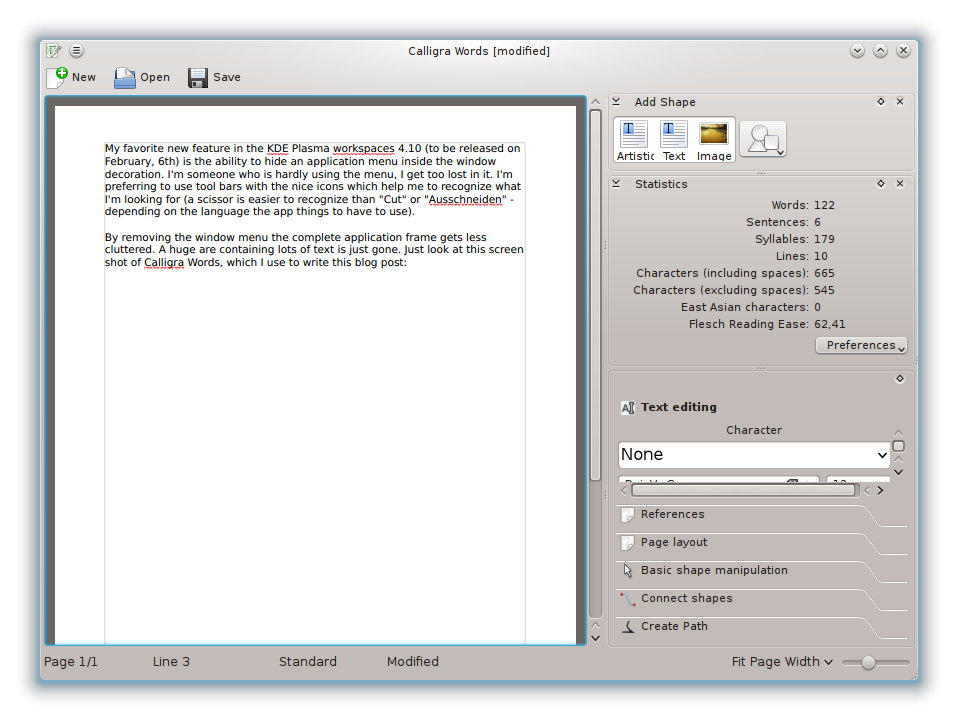
My favorite new feature in the KDE Plasma workspaces 4.10 (to be released on February, 6th) is the ability to hide an application menu inside the window decoration. I’m someone who is hardly using the menu, I get too lost in it. I’m preferring to use tool bars with the nice icons which help me to recognize what I’m looking for (a scissor is easier to recognize than “Cut” or “Ausschneiden” – depending on the language the app thinks to have to use).

By removing the window menu the complete window frame gets less cluttered. A huge area containing lots of text is just gone. Just look at this screen shot of Calligra Words, which I use to write this blog post:

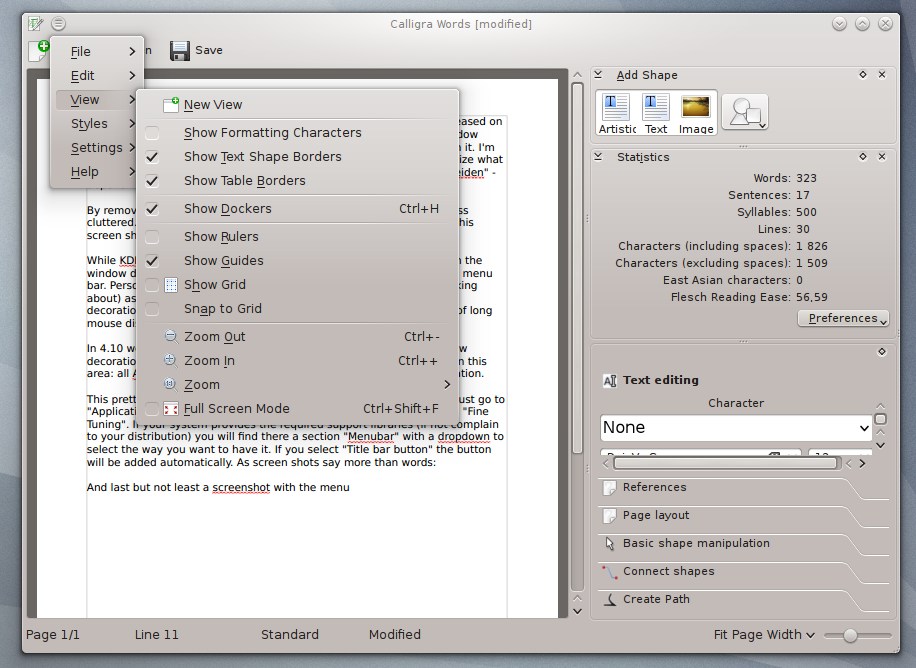
While KDE Plasma workspaces does not only allow to have the menu in the window decoration it also provides the possibility to put it into a global menu bar. Personally I do not like this (have used Mac OS, know what I’m talking about) as it disconnects the menu from the window. With the window decoration this problem does not exist and also removes the problem of long mouse distance travels in case of non-maximized windows.

In 4.10 we provide this new feature only in the Oxygen (default) window decoration. But our 4.11 development branch has seen some activity in this area: all Aurorae themes support it and also the Laptop window decoration.

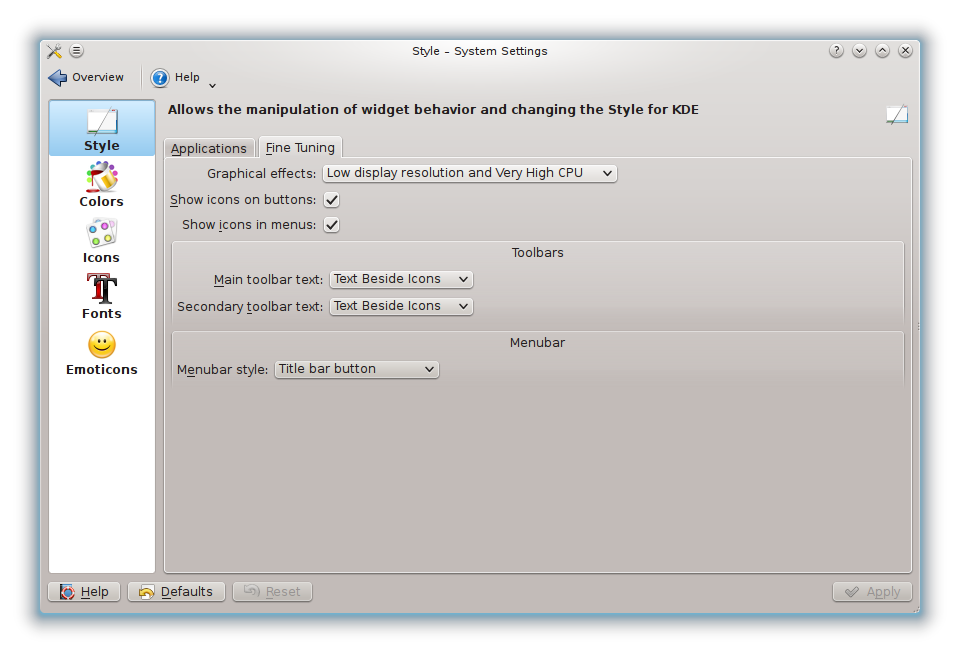
This pretty awesome new feature can be enabled in System Settings. Just go to “Application Appearance”, then to “Style”, select the second tab called “Fine Tuning”. If your system provides the required support libraries (if not complain to your distribution) you will find there a section “Menubar” with a dropdown to select the way you want to have it. If you select “Title bar button” the button will be added automatically. As screen shots say more than words:

And last but not least a screenshot with the menu:

Source: FULL ARTICLE at Planet KDE