When Microsoft added support for the revamped Start page into Windows 8.1, that eliminated the need for dedicated third-party Start menus, right? Wrong, say developers like Stardock, Classic Shell, and others.
Perhaps not surprisingly, the third-party devs say there’s still a need for their products, even though Windows 8.1 will be more friendly to those used to the traditional, or legacy, Start menu found in Windows 7. Many have released updates for the Windows 8.1 preview, but none that spoke to PCWorld said that they’ve thrown in the towel.
If nothing else, fans of Iobit’s Start Menu 8, Classic Shell, and Stardock’s Start8 can rest assured that their favorite plugins aren’t going away. (Pokki, an “apparating system” that was designed to facilitate the interaction of mobile-style apps with the Windows OS, also offers a “classic” Start menu.)
Stardock“Classic” Start menus provide an alternative to the Windows 8.1 Start button.
These products fill a need: to ease the transition to Windows 8 and its unfamiliar Start page. In many ways, Windows 8 is just Windows 7 with a tablet interface layered on top of it, but—sorry!—no Start button. Users upset by the jarringly different Start page had no refuge from it other than third-party alternatives.
Windows 8 is doing quite a job of alienating longtime Windows users. No more Start button, but a whole Start screen full of distracting live tiles; a double interface (Desktop and “Modern”); low information density on Modern apps; and the list goes on. For many companies, this isn’t a disaster but a golden opportunity: The market is full of applications rushing to fix Windows 8, from Stardock’s Start8 and Decor8, through open-source Classic Shell, through $5 utility RetroUI. Although RetroUI 3.1.1 does offer an interesting feature for running Modern apps in a window, awkward implementation keeps it from being the cure-all it could be. In fact, the current version brings its own headaches.
Much like Windows 8, RetroUI is bisected into two distinct parts that bear almost no relation to each other: a Start menu replacement, and an innovative feature called Enforce. The Start menu replacement is hardly unique, but Enforce does something I’ve never seen before: It lets you run Modern apps in a window. If you’ve used Windows 8 for any length of time, you probably realize how exciting that is.
RetroUI’s search is significantly slower than Classic Shell‘s, and you can’t use arrow keys to navigate results.
Enforce couldn’t be simpler to use. It actually works like Windows 8 should have worked in the first place, if you ask me. With RetroUI installed, Modern apps just start in a maximized window. You can then resize that window, drag it around, and generally work with it like you would with any other windows.
There are a few caveats and oddities remaining: It won’t show up on your taskbar, and you won’t be able to have two Modern apps on-screen at the same time. You can have two Modern apps open at the same time and switch between them using Alt+Tab, but you won’t see them both on the screen simultaneously. That’s sometimes frustrating, because even the default full-screen Modern interface lets you have two applications on-screen concurrently (a primary app taking up most of the space, and a secondary one taking up a vertical on the side). Adding to the frustration is the fact that whenever you Alt+Tab back to a previously open Modern app, it will maximize itself to take up the full screen, even if you’ve resized it before. And finally, Modern apps don’t show up on the taskbar, even when they’re running in a window.
Third-party replacement of the missing Windows 8 Start menu (I’m sorry, the Modern/Metro UI is not a start menu) has become quite the booming cottage industry. Stardock’s Start8, a $5 alternative, has been the most seamless replacement for several months, but it’s now going to have to share that honor with Iobit’s Start Menu 8. And, unfortunately for Stardock, Start Menu 8 is free.
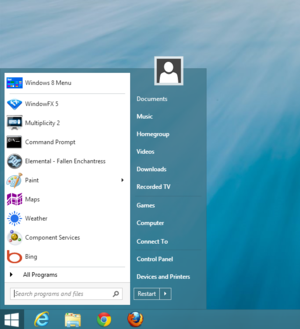
Start Menu 8 looks and works just like a native app.
Start Menu 8 installs easily, mimics the Windows 7 Start menu to a tee—including the search field—and is just as configurable as that which it seeks to duplicate. You can show or hide the items such as administrative tools, control panel, documents, network, photos, etc., as well as disable the hot corners and the Windows 8 sidebar. You can also change the appearance of the start button to match Windows 8, XP, Windows 7, etc., though the menu itself retains the look of Windows 8. You may also easily reach the Modern UI (formerly known as Metro) interface when you want to explore it at your leisure.
The Start Menu 8 installation routine will ask you if you want to install Iobit’s Advanced SystemCare 6 software (the default is yes), but there’s no advertising aside from that.
To make a long review short: Start Menu 8 it works just like the Start Menu you wanted to see when you first got your Windows 8 PC. Do yourself and anyone else you know who’s been saddled with a new interface they didn’t really want a favor: Download Start Menu 8; install it; leave the Windows 8 learning curve and inefficiency behind; and get on with your lives.
Windows 8 doesn’t have a Start button. If you don’t think that’s something that needs fixing, you’re probably in the minority, at least for now. Maybe in time, Windows 8’s Modern-style Start Screen will grow on users and it’ll turn out Microsoft was right all along. Until that happens, there’s a flourishing niche of aftermarket utilities that bring the Start button (and menu) back to Windows 8, from excellent ones like Stardock’s Start8, to ones that add value like Pokki, to less-than-stellar attempts like RetroUI. But you don’t need to pay to get a Start button: There’s one tool that’s free, open-source, and very customizable. Meet Classic Shell.
This is my Classic Shell Start menu, but yours may end up looking completely different, depending on your taste.
Unlike most Start menu replacements, Classic Shell has been around for a while. Its first version came out in November 2009, long before Windows 8 was even close to public. At the time, it was meant to fix interface annoyances in Windows Vista. That was version 0.9 (the first publicly available version), and today, more than three years later, it’s at version 3.6.4. As software projects are wont to do, Classic Shell grew over time, and now consists of three separate parts: Classic Explorer, Classic Start Menu, and Classic IE9.
That tendency of software projects to grow and morph over time is exactly what Classic Shell sets out to fix. It doesn’t try to invent anything new: In the project’s own words, Classic Shell is “a collection of features that were available in older versions of Windows but were later removed.” You’re not going to find any groundbreaking UI innovations here, and in my eyes, that’s a good thing. These are interface patterns that worked and that Microsoft took away for reasons unknown.
Classic Shell ships with three built-in skins derived from different Windows versions, which can be tweaked as needed.
Classic Shell‘s most newsworthy component is Classic Start Menu, and it’s stellar. Hit the Windows key on your keyboard, and up pops a Start menu, just like you remember it from Windows 7 (or Windows Vista, or Windows XP–you can choose your own skin). Start typing to search for programs, hit Enter to launch. Search is blazing fast. You can pin items to the Start menu, and customize every aspect of it. Never use the Printers item? No problem, you can easily make it go away. In other words, Classic Start Menu is just like the Start Menu you know and love, only more customizable.
With Microsoft ditching the venerable Start Menu with Windows 8, plenty of vendors are stepping in to fill the void. StartMenuPlus8 doesn’t exactly replicate the Windows Start Menu, but functionally it’s the equivalent.
StartMenuPlus8 sits on the desktop taskbar; however, it’s not where you’d normally expect it on the far left, but to the right as a program icon. Once you’re used to that, simply click it and you get the Start Menu functionality that you want. You can access your programs, folders, the control panel, etc. all in the fashion you’re used to. The program is also highly configurable, and has some features such as configurable task lists that might interest you.
As you can see, StartMenuPlus 8 isn’t an exact duplicate of the Windows Start Menu, but it has more options.
I find the effort behind StartMenuPlus8 worthy, but it’s not as handsome or as slick as Stardock’s Start8, which melds almost seamlessly with the operating system and replicates the Start Menu and W8 UI behavior to a tee (all while costing the same $5). Still, you might want to take a look if you want a Start Menu replacement with more options.
Note: The Download button on the Product Information page takes you to the vendor’s site, where you can download the latest version of the software.



 As you can see, StartMenuPlus 8 isn’t an exact duplicate of the Windows Start Menu, but it has more options.